Describe and assign
Describe the task and assign a responsible person to coordinate completion. Add participants who contribute to the work.
Watch: Assign people to tasks →
TASK MANAGEMENT SOFTWARE
Break projects into tasks and unlimited levels of subtasks, assign responsibilities, and track progress in Starbrix Core.
Bring schedules, documents, and communication together with the work. Give everyone a clear view of what needs to be done, from a small team's assignments to complex projects across departments.
Start Free →Free forever for teams of up to 3 members.
TURN PROJECT PLANS INTO ACTION
When tasks are scattered across spreadsheets, emails, and personal lists, it is difficult to know who is doing what, when work should finish, and how the project is progressing.
Starbrix Core connects each task to the overall project. Project managers can organize the work and monitor progress, while team members focus on their assignments without losing sight of the bigger picture.
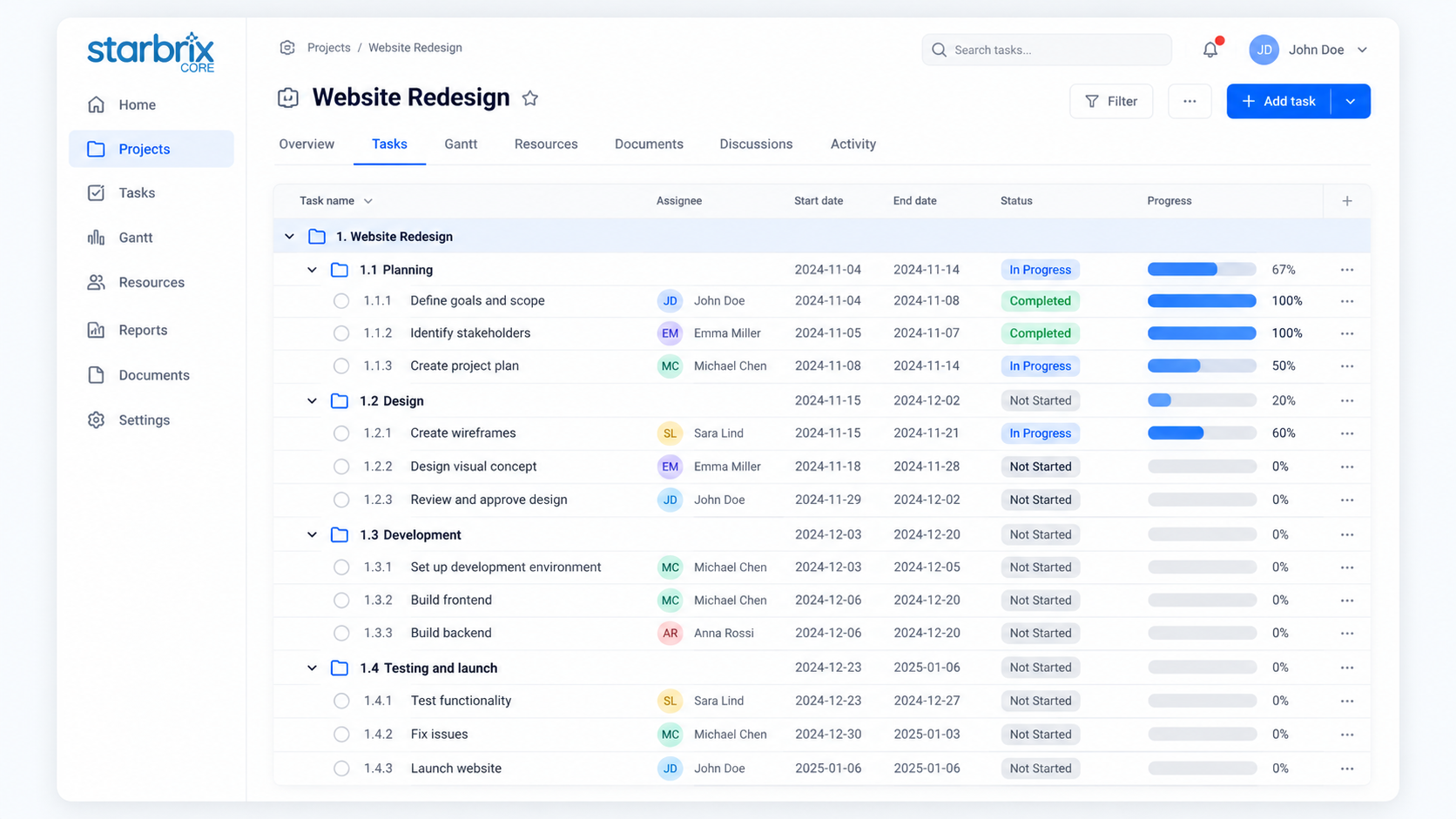
Build a hierarchical Work Breakdown Structure (WBS) with unlimited levels of nested subtasks. Each task can contain subtasks, and each subtask can contain further subtasks.
Start with the main phases, then progressively divide them into smaller activities. Each task and subtask can have its own responsible person, schedule, status, and supporting information.
A straightforward project may need only a handful of tasks. A detailed development project can include hundreds of interconnected activities.
Watch: Create tasks and subtasks →EXAMPLE · PRODUCT DEVELOPMENT
An example hierarchy. Add the detail your own process requires.
A COMPLETE WORKING CONTEXT
Define the work, choose a responsible person, and add participants. Keep dates, progress, files, and discussions connected to the task.
Describe the task and assign a responsible person to coordinate completion. Add participants who contribute to the work.
Watch: Assign people to tasks →Set planned start and finish dates, record actual dates, and maintain status, overall condition, and completion.
Associate relevant Workspaces and suppliers. Upload files, add links, and keep task discussions in context.
MAKE RESPONSIBILITIES CLEAR
Personal task views bring relevant assignments together. Review deadlines and update progress without checking each project separately. Review and update your tasks across projects, on desktop or smartphone.
Project managers use the same information to follow responsibilities and progress across projects.
PLAN SCHEDULES AND DEPENDENCIES
Set task start and finish dates to coordinate activities. For detailed scheduling, use interactive Gantt charts to define the relationships between tasks.
For example, testing can depend on a finished prototype. Use one of four dependency types and lead or lag to describe the scheduling relationship. Explore the Gantt guide for details.
Explore Gantt Charts →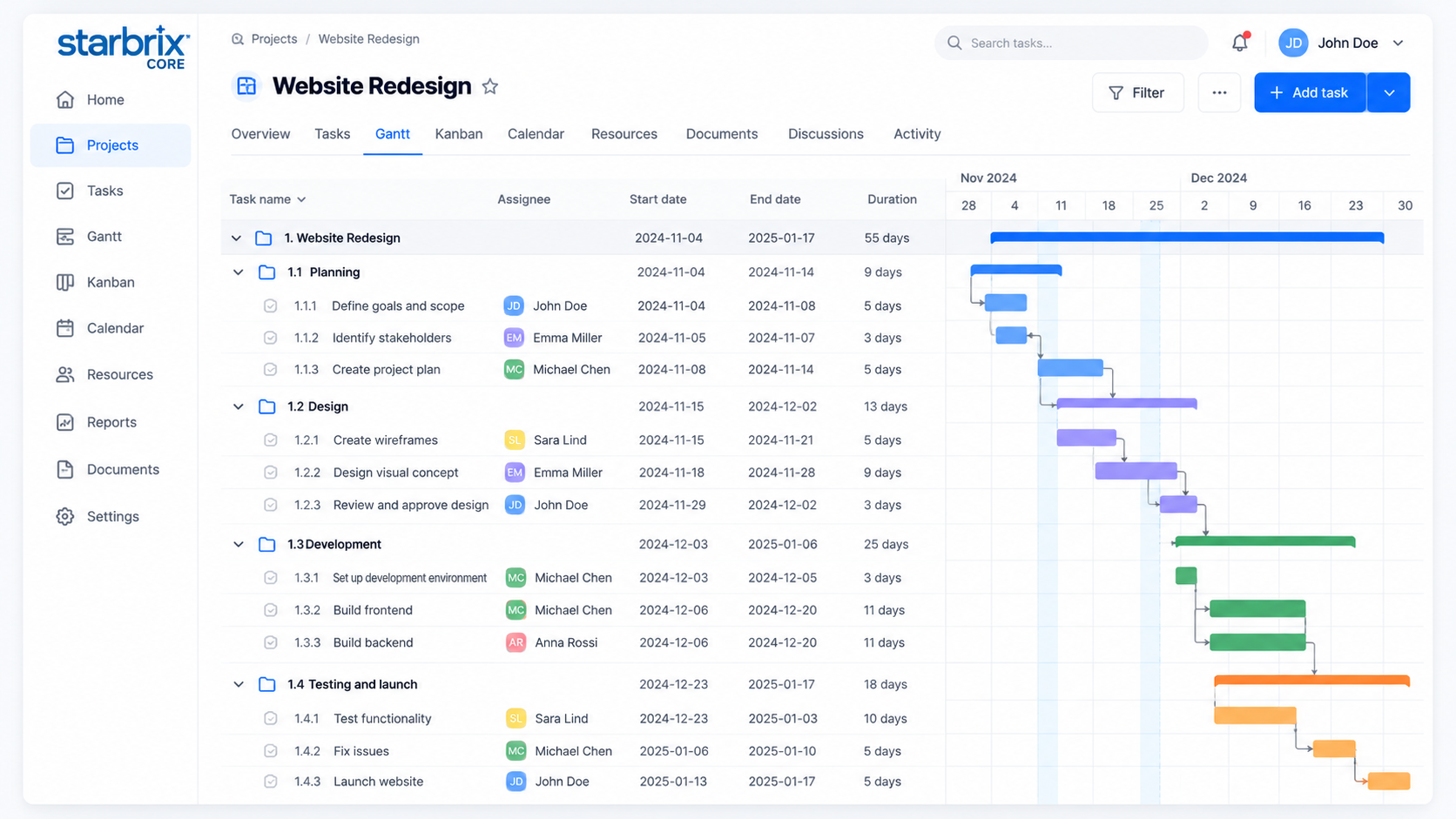
LOOK BEYOND COMPLETED OR NOT COMPLETED
For example, a task is In Progress and 70% complete, but materials are missing. Its State signals a problem, while the status description explains what is blocking completion.
In Progress — work has started.
A subjective assessment of how the work is going. In this example, the negative indicator flags a problem.
70% — an estimate of how much work is finished.
“Waiting for materials; delivery date needs review.” A short explanation adds context to the indicators.
Planned and actual dates provide further context about the schedule and when work takes place.
ADAPT THE WORKFLOW
Customize task status names to match your workflow, such as Planning, Implementation, Review, and Completed. These names describe stages of work.
As people update their tasks, the information also supports project-level progress monitoring and helps managers identify activities needing attention.
MANAGE TASKS VISUALLY
Use connected Kanban boards to see where tasks stand in the workflow. For example:
Backlog → Not Started → Planning → Implementation → Review → Completed
Kanban uses the same task information as the other relevant project views.
Explore Kanban Boards →KEEP INFORMATION CLOSE TO THE WORK
Upload a specification, technical drawing, customer instruction, or supporting reference. Add links to documents in SharePoint, OneDrive, or other services.
Files and links can also be accessed from relevant task views, helping people find information without searching through unrelated folders or email conversations.
Explore Project Document Management →Every task can have its own chat for questions, information sharing, and coordination. Exchange messages, files, and images with the people involved.
Keep discussions associated with the activity they concern, especially when work requires several people and ongoing decisions.
Explore Built-in Project Messaging →AUTOMATE FOLLOW-UP
Use notifications for new task responsibilities, overdue activities, selected status changes, and specified dates.
When a predecessor task is completed, a configured email notification can inform the person responsible for the dependent task. This helps work move between departments with less manual follow-up.
Explore Project Notifications & Reminders →PREDECESSOR TASK
The team marks Design as completed.
EMAIL NOTIFICATION
Alex is informed that the preceding work is complete.
DEPENDENT TASK
Responsible person: Alex
YOUR QUESTIONS, ANSWERED
Yes. Each task can contain subtasks, which can contain further subtasks, allowing you to build a detailed Work Breakdown Structure (WBS) at the level of detail your project needs.
Yes. Each task can have a designated responsible person and additional participants, making it clear who coordinates the work and who is involved.
Yes. Create task status names that fit your process, such as Planning, Implementation, Review, and Completed.
Yes. Starbrix Core supports completion percentages, an overall condition assessment, status descriptions, and planned and actual dates.
Yes. Personal and cross-project task views help team members review and manage assignments across multiple projects.
Yes. Tasks can use Finish-to-Start, Start-to-Start, Finish-to-Finish, and Start-to-Finish dependencies, including lead and lag times.
Yes. Upload files, add links to external resources, and use dedicated task messaging to discuss work with other participants.
Yes. System notifications and configurable email notifications can inform relevant people about assignments, overdue activities, status changes, and other configured events.
Build task hierarchies as detailed as your projects require.
Keep your team working with the same information.
Free forever for teams of up to 3 members.