
PROJECT DOCUMENT MANAGEMENT
Keep documents connected to the work.
Attach files or add links to projects and tasks. Keep agreements, drawings, and instructions with the work they support.
Start FreeFree forever for teams of up to 3 members.
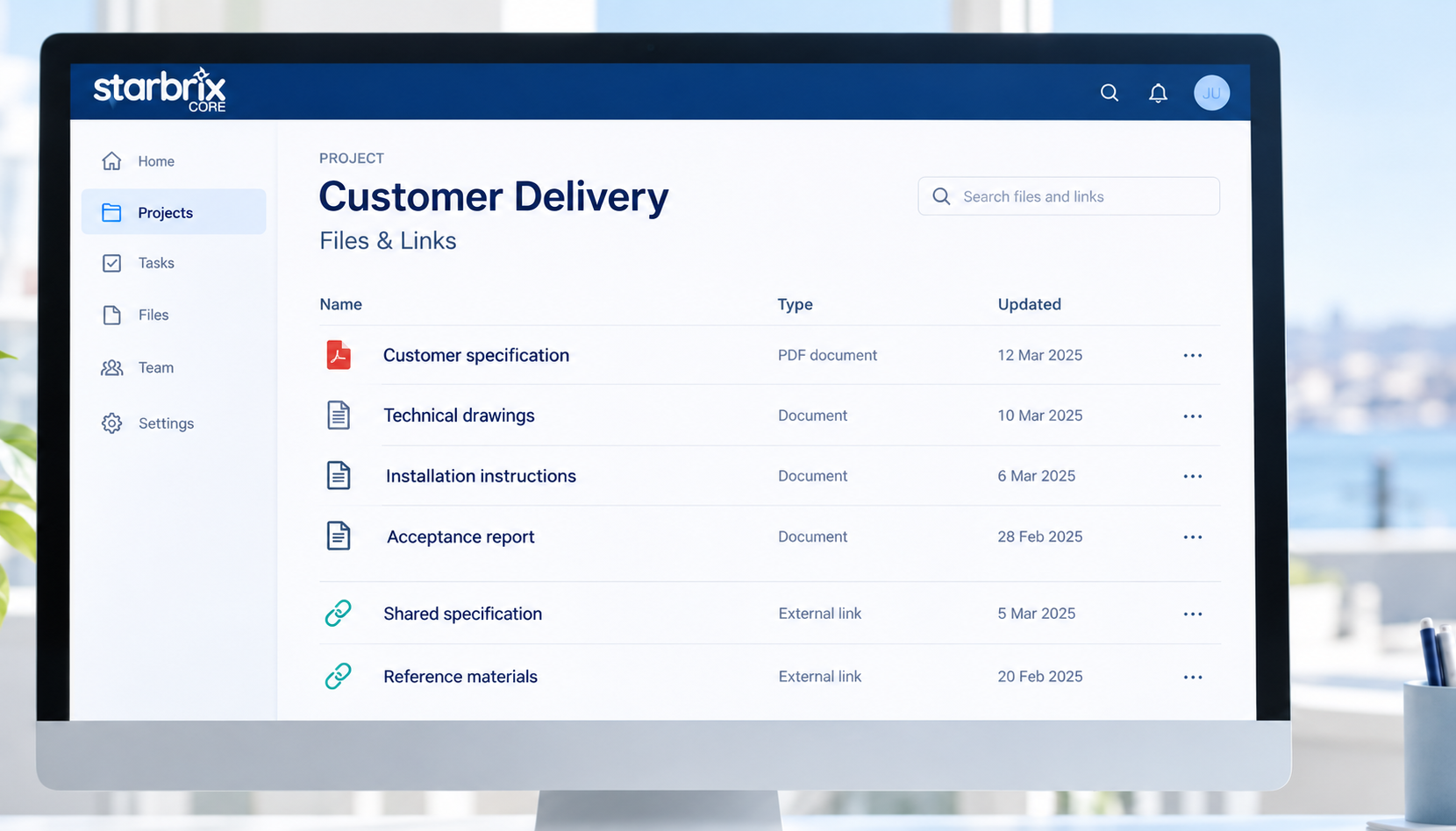
Project and task attachments
Put documentation where it is needed.
External document links
Connect resources in existing cloud services.
Shared project context
Keep useful information available over time.
PROJECT FILES AND TASK DOCUMENTS
Put each document where it belongs.
Keep general documentation on the project. Attach activity-specific materials to the task that needs them. Each project and task supports an unlimited number of file attachments and links.
EXAMPLE · CUSTOMER DELIVERY
PROJECT
Customer delivery
TASK
Mechanical design
TASK
Installation
TASK
Testing
FILES AND EXTERNAL LINKS
Upload a file. Or link to an existing resource.
Upload a file
Attach a PDF, drawing, spreadsheet, photo, or other supporting file directly to the project or task.
Add a link
Link to a document maintained in OneDrive, SharePoint, Google Drive, or another service. The document stays in its original location.
External links keep the permissions of their original service. Adding a link in Core does not grant access to that resource.
DOCUMENTS IN EVERYDAY VIEWS
Find supporting files while reviewing the work.
Display file and link columns in relevant project and task views, including alongside Gantt charts. See which activities have supporting materials without opening every record.
EXAMPLE · TASKS WITH FILE AND LINK COLUMNS
| Task | Files | Links |
|---|---|---|
| Mechanical design | ▤ Technical drawing.pdf | ↗ Shared design specification |
| Installation | ▤ Installation instructions.pdf | ↗ Manufacturer’s instructions |
| Testing | ▤ Test results.xlsx | ↗ Test procedure |
Access follows project permissions
Member and project permissions control access to project information. External resources also keep their own access requirements.
Available on smartphones
Core is fully optimized for smartphones, so team members can access relevant project information away from their desks.
REUSABLE DOCUMENTATION
Start each installation task with its instructions already attached.
Include recurring files and links in project templates. Copy the instructions, reference materials, and forms into the new project structure, then adapt them for the work ahead.
Explore Project Templates →SHARED PROJECT KNOWLEDGE
Keep project knowledge with the project.
When responsibilities change, the next colleague can find supporting documents together with the project’s tasks, schedules, and responsibilities. Useful information stays in shared project records.
For external links, keep the original location and access permissions up to date so the resources remain available.
ANSWERS TO COMMON QUESTIONS
Frequently asked questions
Can I attach files and links to both projects and tasks?
Yes. Keep general documentation on the project and activity-specific files and links on the relevant task.
How many files and links can I attach?
Each project and task supports an unlimited number of file attachments and links.
Can I link to OneDrive, SharePoint, or Google Drive?
Yes. Add links to documents stored in those services or to other relevant online resources. The resource stays in its original service.
Who can access the documents?
Member and project permissions govern access to project information. External documents also keep the access permissions of their hosting service; adding a link does not grant access.
Can I see file and link columns alongside Gantt charts?
Yes. File and link information can be displayed as columns in relevant project and task views, including alongside Gantt charts.
Can project templates include files and links?
Yes. Templates can include files and links that are copied into the new project structure when the template is used.
Does Core have document folders and subfolders?
Core organizes files and links directly on projects and tasks. It does not provide a separate document folder or subfolder hierarchy.
Put project information within reach.
Connect the files, links, and supporting knowledge your team needs to the projects and tasks they manage every day.
Start FreeFree forever for teams of up to 3 members.