
WORKSPACES
Organize team work. Follow project groups.
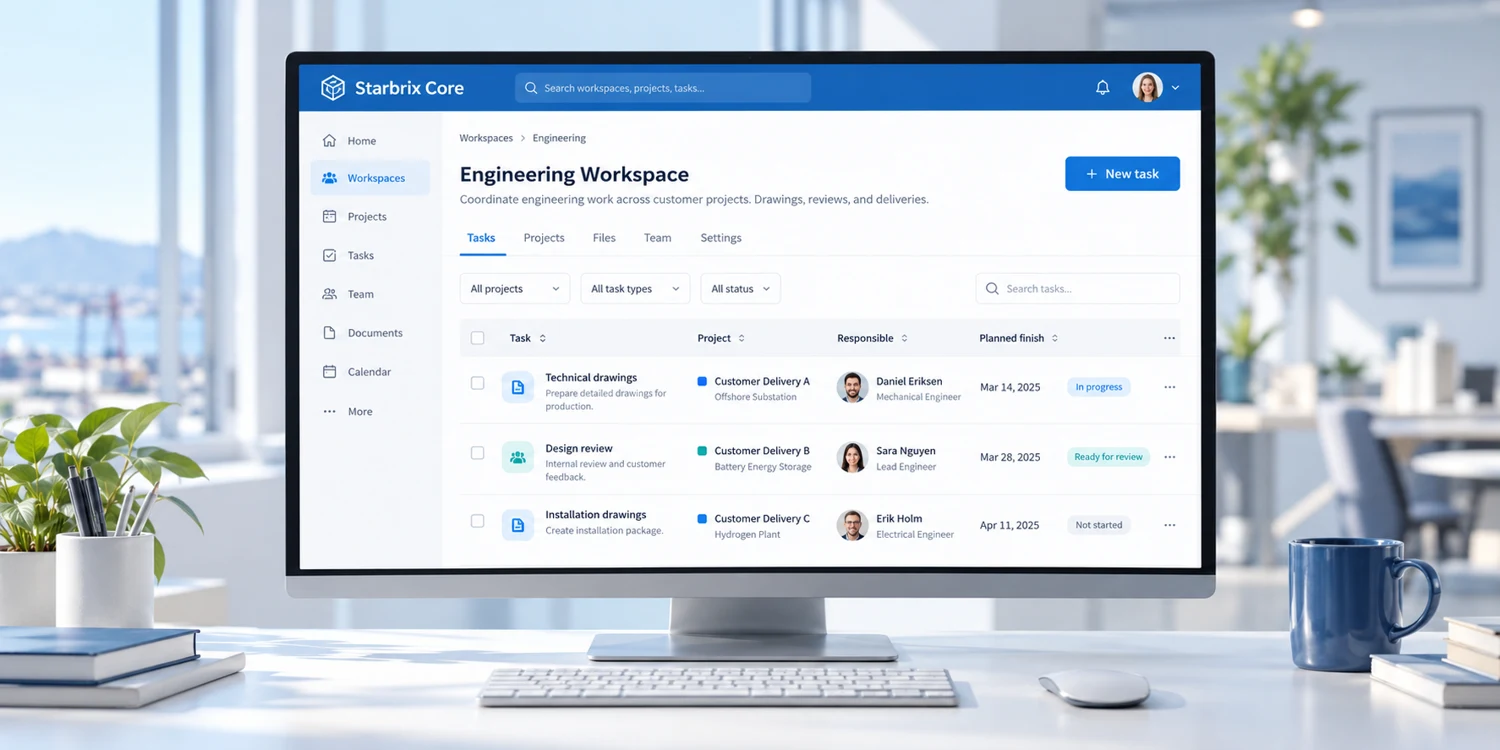
Use Workspaces as a shared place for a team’s work or to follow a selected group of projects. Switch to Organization overview for the complete project picture.
Start FreeFree forever for teams of up to 3 members.
Team work
Manage a team’s projects and activities.
Project groups
Follow similar projects together.
Organization overview
See all projects across Workspaces.
TWO WAYS TO USE WORKSPACES
A place for your team. A view of your project group.
Bring your team’s work together.
Give a real team one place to manage and follow its projects, tasks, and everyday follow-ups.
For example: Documentation team, Management team, or Product Development team.
Follow a selected group of projects.
Bring similar projects together to review their managers, progress, and schedules.
For example: air-source heat pump installations in one Workspace and ground-source heating installations in another.
01 · A SHARED PLACE FOR A REAL TEAM
Bring Documentation team’s work together.
A Documentation team can follow its projects and tasks in one Workspace and add team to-dos for everyday follow-ups. Here, three different projects each contain one documentation task. Select “Documentation team” on each task to show it in the team’s Workspace.
Customer delivery
Product development
Website update
↓ The same three tasks appear in Documentation team’s Kanban
Documentation team Workspace
NOT STARTED
IN PROGRESS
COMPLETED
Use the same approach for a Management team or Product Development team. Select the Workspace on the projects and activities the team needs to manage and follow.
ONE PROJECT, SEVERAL TEAMS
Choose the right Workspace for each task.
A task’s Workspace can differ from its project’s Workspace. Choose it on the individual task so the relevant team can follow that work.
Prepare technical drawings
Workspace selected on this taskOrder components
Workspace selected on this taskPerform final inspection
Workspace selected on this taskProjects, tasks, to-dos, and events have their own Workspace selections.
Explore Task Management →02 · FOLLOW A PROJECT GROUP
Separate project groups. A clear overview of each.
A heating installation company delivers air-source heat pumps and ground-source heating systems. It uses a Workspace for each group to follow the relevant customer projects together.
Choose the Workspace on each project. The project appears in that Workspace’s project overview, with its manager, progress, and schedule.
Air-source heat pumps
Ground-source heating
THE COMPLETE PROJECT PICTURE
See every project in Organization overview.
Choose Organization overview whenever you want to see all projects across the organization, regardless of their Workspace. Each Workspace gives you a focused view of selected work.
All six installation projects together
Projects without a Workspace are included too. User permissions determine which projects each person can see.
WORK WITH THE SELECTED ACTIVITIES
Follow the workflow. See what is scheduled.
Workspace Kanban
Follow associated project tasks and to-dos together. Create Workspace to-dos directly on the board for smaller actions and follow-ups.
NOT STARTED
IN PROGRESS
A status change follows the same card across every board where it appears. Vertical card order is specific to each board.
Explore Kanban Boards →Workspace calendar
See associated tasks, to-dos, and events that have scheduling dates. Use day, week, or month views to coordinate work and meetings.
Prepare user guide
Confirm terminology
Documentation review
GET STARTED
Start with a team or a project group.
Create a Workspace
Choose a real team, such as Documentation team, or a project group, such as Air-source heat pumps.
Select the relevant work
For a project group, select the Workspace on each project. For team work, select it on the projects and individual activities the team needs to follow.
Follow the selected work
Review the Workspace’s projects and activities. Use Kanban and calendars for the relevant work, and switch to Organization overview for all projects.
Starbrix Core is fully optimized for smartphones, so team members can follow their work wherever they are.
Explore Project Portfolio Management →ANSWERS TO COMMON QUESTIONS
Frequently asked questions
What is a Workspace in Starbrix Core?
A Workspace can be a shared place for a real team’s projects and activities, or a focused overview of a selected group of projects. Choose the Workspace on the projects or activities you want to include.
Can we group projects by the kind of work we deliver?
Yes. For example, a heating installation company can follow air-source heat pump projects in one Workspace and ground-source heating projects in another. Select the relevant Workspace on each project.
Can tasks have different Workspace associations from their parent project?
Yes. Projects, tasks, to-dos, and calendar events have independent Workspace associations.
Can one Workspace bring together activities from several projects?
Yes. Associate relevant activities with the Workspace while keeping them in their original projects.
What does Workspace Kanban display?
Workspace Kanban shows project tasks and to-dos associated with that Workspace. Create Workspace to-dos directly on the board. Moving a card between columns updates its status everywhere it appears; vertical card order is specific to each board.
Do Workspaces have calendars?
Yes. Workspace calendars show relevant scheduled tasks, to-dos, and calendar events associated with the Workspace.
Where can I see all projects across Workspaces?
Choose Organization overview to see all projects across the organization, including projects without a Workspace. User permissions determine which projects each person can see.
What is the difference between a Workspace and a project?
A project manages a specific objective or delivery. A Workspace provides an organizational perspective on selected projects and activities, often across several projects.
Bring teams and project groups into focus.
Use Workspaces for selected work, and Organization overview for the complete project picture.
Start FreeFree forever for teams of up to 3 members.