
CALENDARS
Project calendars for tasks, to-dos, and meetings.
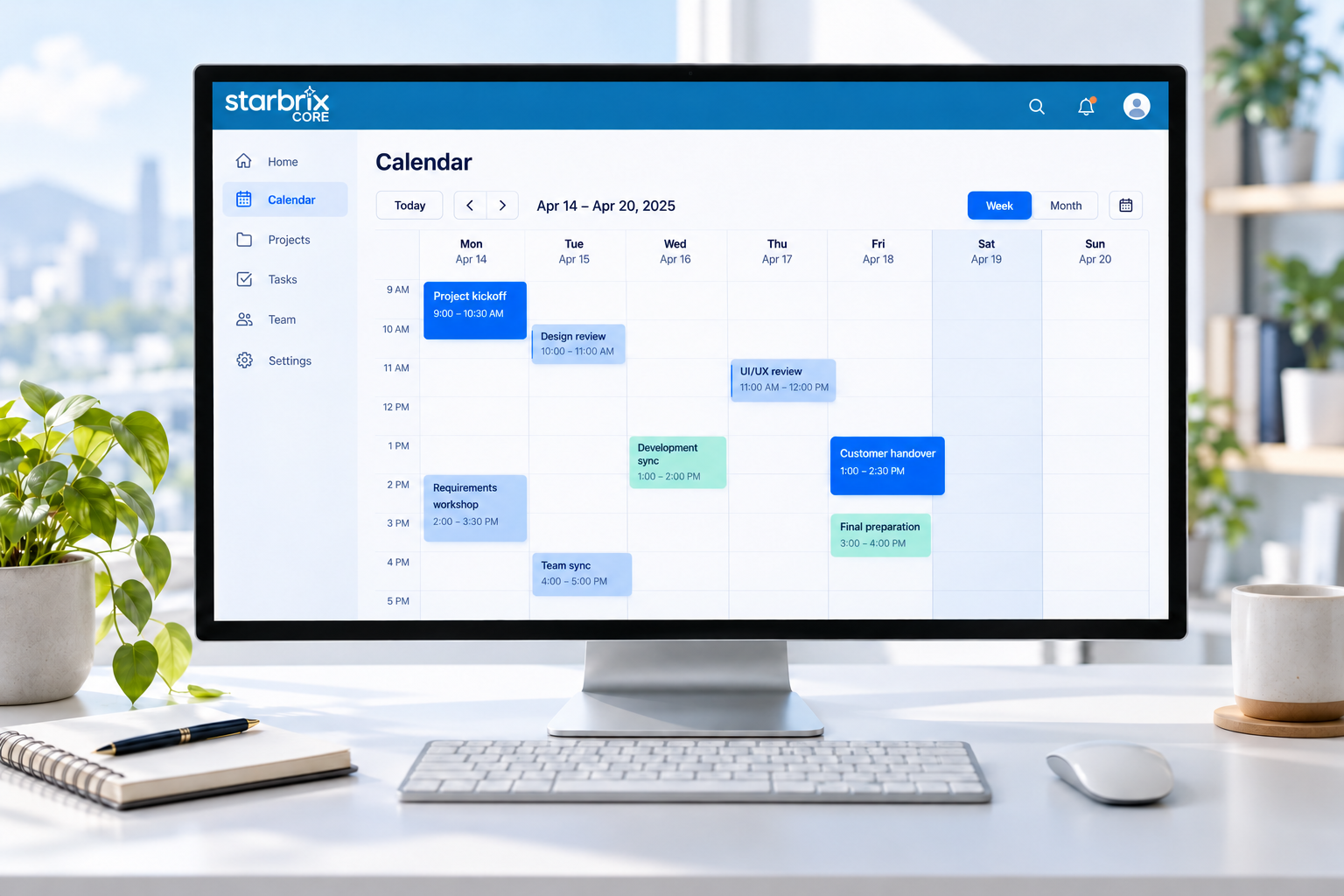
Create tasks, to-dos, and events directly in your calendar. Coordinate project activities, personal responsibilities, and team schedules with connected day, week, and month views.
Start FreeFree forever for teams of up to 3 members.
Create directly
Add tasks, to-dos, and events.
Day, week, or month
Choose the right planning horizon.
Across projects
See your relevant commitments.
CALENDAR-BASED PROJECT PLANNING
Create work directly in the calendar.
Select a date or time and create a task, to-do, or event. Plan project work, everyday follow-ups, and meetings in the same calendar.
Choose Task for scheduled project work, To-do for a smaller follow-up, or Event for a meeting or review.
1. Select a date or time
Selected time
2. Choose what to create
Prepare specification
Call supplier
Customer review
YOUR PLANNING HORIZON
Focus on today. Coordinate the week. Review the month.
Day
Focus on today’s activities and scheduled times.
Week
Coordinate work and meetings over the coming days.
Month
See upcoming dates and plan further ahead.
PROJECT, PERSONAL, AND WORKSPACE CALENDARS
Your project. Your work. Your team.
Project calendars
See one project’s scheduled tasks, to-dos, and events. Add new activities directly in the project calendar.
Personal calendars
See your scheduled assignments and events from different projects in one calendar.
Workspace calendars
See scheduled activities linked to a Workspace, such as a team or department, across projects.
Responsible people and participants see relevant activities in their personal calendars. Select a Workspace on an activity to make it visible in that team’s calendar too.
Starbrix Core is fully optimized for mobile use, including smartphones, so people can keep up with their project activities while away from their desks.
CONNECTED ACTIVITY INFORMATION
Create once. Work in the view that suits you.
Create a task such as “Prepare specification” in the calendar. The same task is available in Table, Gantt, and Kanban. Changes stay connected across the relevant views.
Activities need scheduled dates to appear in calendars. Add start and finish times to place them at the relevant time of day.
KEEP THE SCHEDULE USEFUL
Edit, reschedule, and prepare for what comes next.
Maintain the plan directly
Open an activity in the calendar to change its dates or times. The updated schedule stays connected to the relevant project and personal views.
Configure event notifications
Configure notifications for calendar events to remind the people involved about an upcoming meeting, review, or handover.
ANSWERS TO COMMON QUESTIONS
Frequently asked questions
Can I plan an entire project directly in the calendar?
Yes. Create and schedule tasks, to-dos, and calendar events directly in the project calendar. Tasks also become available in the task list and Gantt chart, while to-dos appear in their relevant views.
Do tasks and to-dos appear automatically?
Yes. Activities created in other views appear in the relevant calendars when they have the necessary scheduled dates.
Can I switch between daily, weekly, and monthly views?
Yes. Starbrix Core provides day, week, and month calendar views.
Can activities have specific start and finish times?
Yes. Tasks, to-dos, and calendar events can have scheduled times so they appear at the appropriate time of day.
Can I see work from several projects in my personal calendar?
Yes. Personal calendars bring together scheduled tasks, to-dos, and events relevant to the user across projects.
What is a Workspace calendar?
A Workspace calendar shows scheduled activities associated with a particular Workspace, such as a team, department, or functional area.
Can I edit and reschedule activities directly in the calendar?
Yes. Edit and reschedule activities through calendar views, keeping the updated information connected to the relevant project views.
Are calendars connected to Gantt and Kanban?
Yes. Create a task in the calendar, manage its schedule and dependencies in Gantt, and follow its workflow status in Kanban without duplicating the activity.
Plan your work your way.
Create and coordinate tasks, to-dos, and events in a calendar that stays connected to your projects.
Start FreeFree forever for teams of up to 3 members.