RESOURCE ALLOCATION & WORKLOAD
See your team’s workload. Make room for what’s next.
Review assignments and planned hours across projects. Identify overloaded people, compare workload with capacity, and see when your team can take on more work.
Start Free60-day free trial. All features included.
LOOK AHEAD
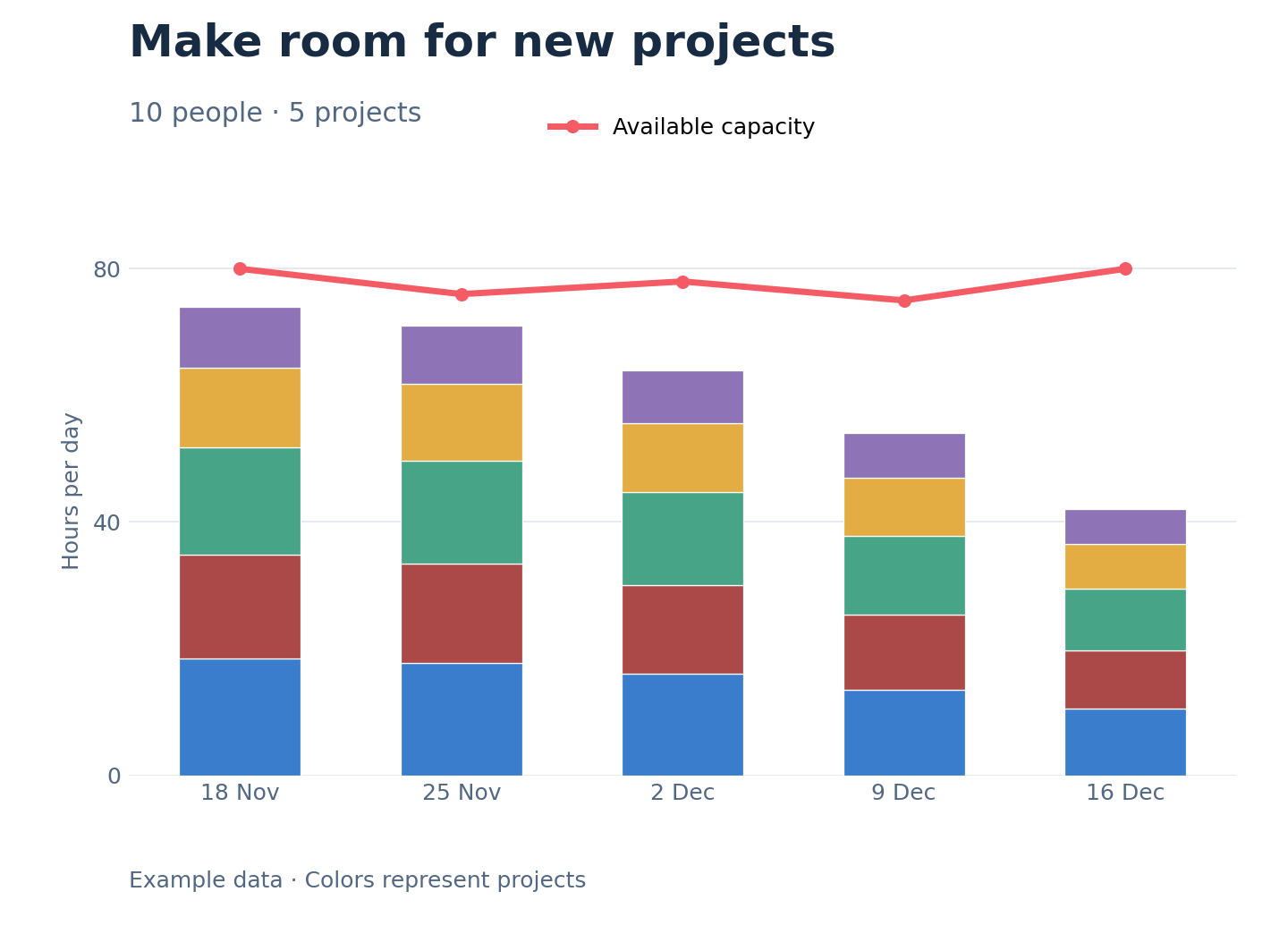
See when your team can take on more work.
The following examples use a fictional ten-person team. As currently scheduled work finishes, more capacity becomes available for additional projects. The gap between planned hours and capacity shows where new work could fit.
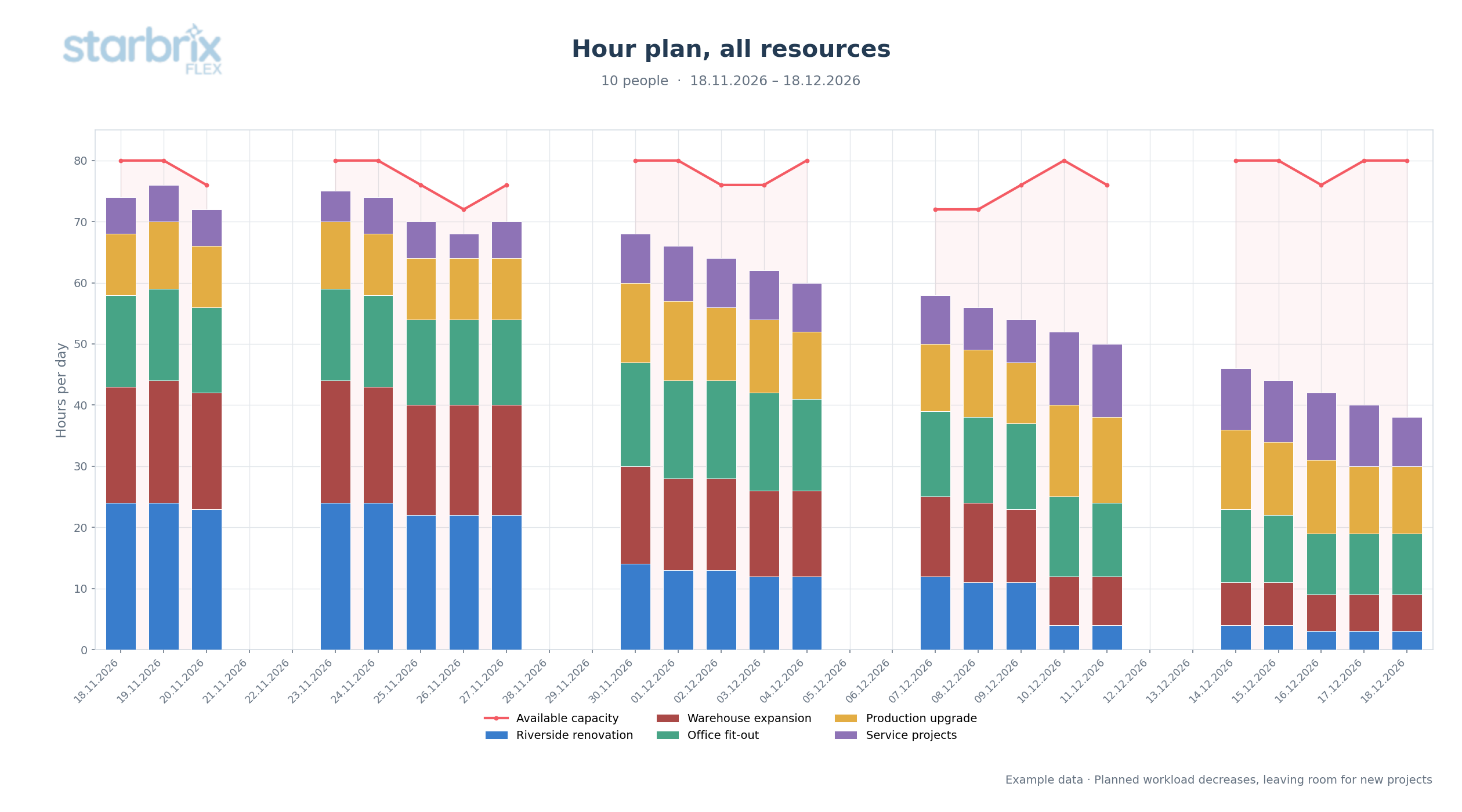
Available capacity across the team is a starting point. Check the people and competences needed before assigning new work.
Review hour charts by day, week, or month. Select people, Workspace or competence-area members, or the whole staff. Use one combined chart or separate diagrams, with project or person colors or totals without a breakdown.
CHOOSE YOUR SCOPE
Focus on the people and work you need to review.
Review the whole organization, focus on a team, or inspect one person. Review assignments within a project, across all projects, or within a Workspace.
Select people with planned work or people without it when you need to find existing commitments or unassigned resources.
Explore Workspaces →INSPECT THE DETAILS
Find overloaded days and understand the project staffing.
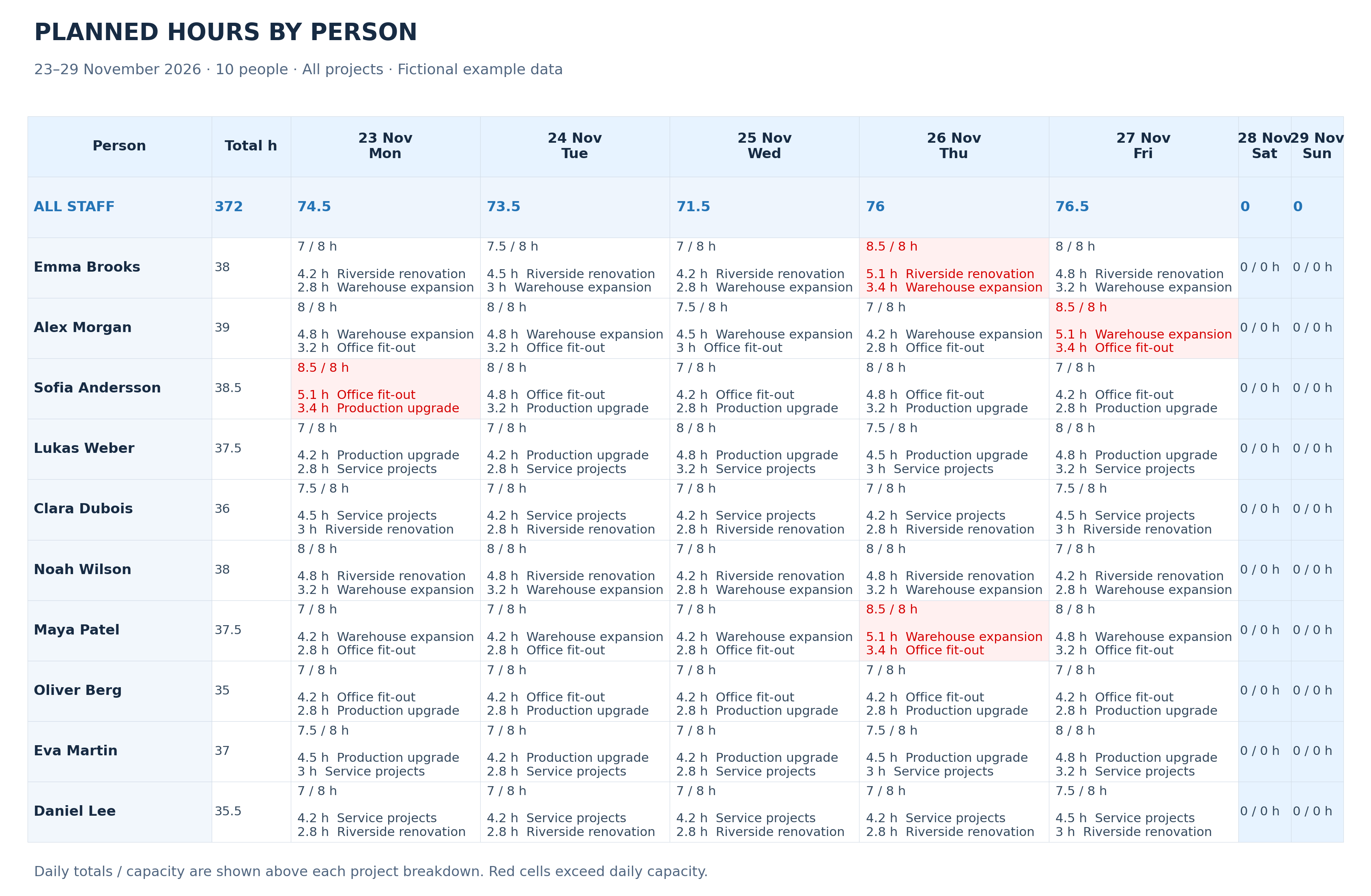
By person: see what contributes to the workload
Review each person’s daily planned total against capacity, then inspect the project breakdown to identify work that could be reassigned or rescheduled.
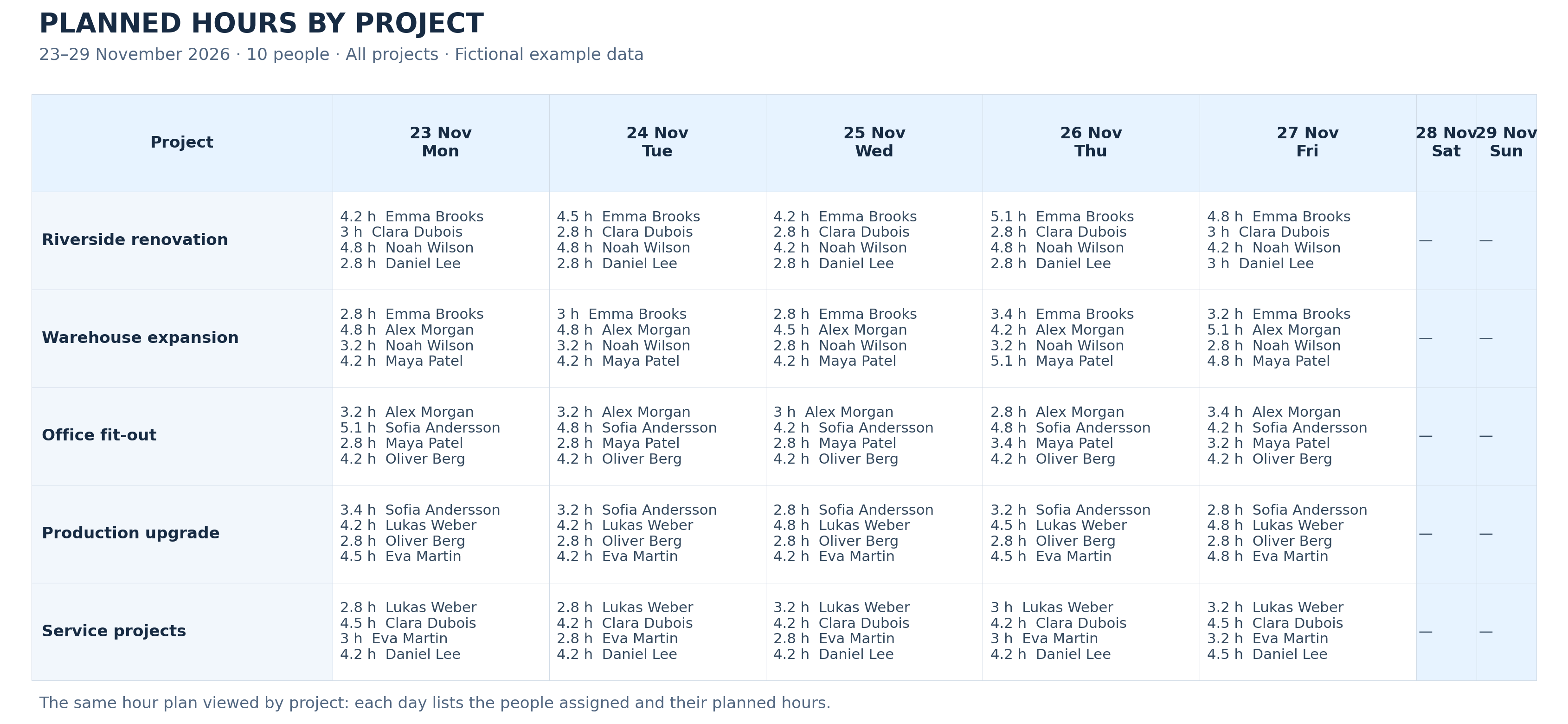
By project: see who will contribute and when
Switch to projects to inspect the same planned hours from the project’s perspective. See the people assigned and how the work is shared.
TASKS BY PERSON
Bring each person’s assignments together.
Show one timeline row per person to see busy periods, overlaps, and gaps across projects. Filter by competence to focus on a particular skill group, or use the resource overload filter to find assignments needing attention.
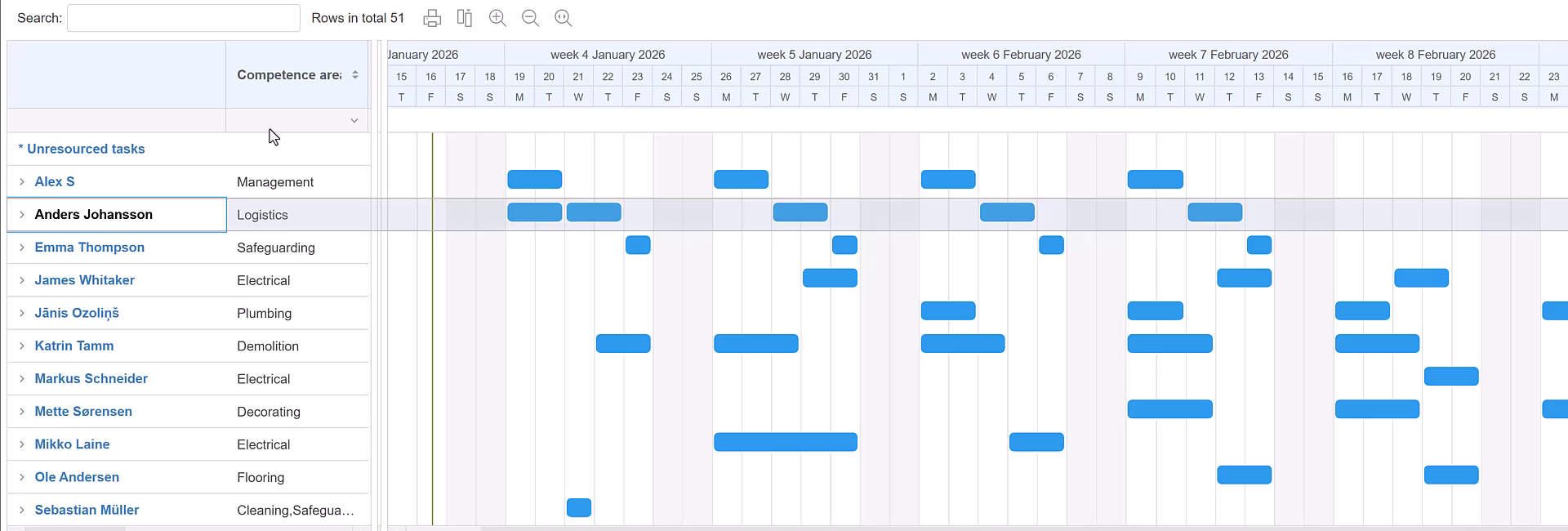
Task bars show when assignments run. To assess how much work a person can take on, compare planned hours with available capacity.
REVIEW ASSIGNMENTS
See how one change affects other commitments.
When an extended task overlaps a person’s next assignment, Flex highlights their name in red and shows a red conflict bar. Thin bars provide context for other commitments, including work in other projects; yellow periods show vacation time in the resource view.
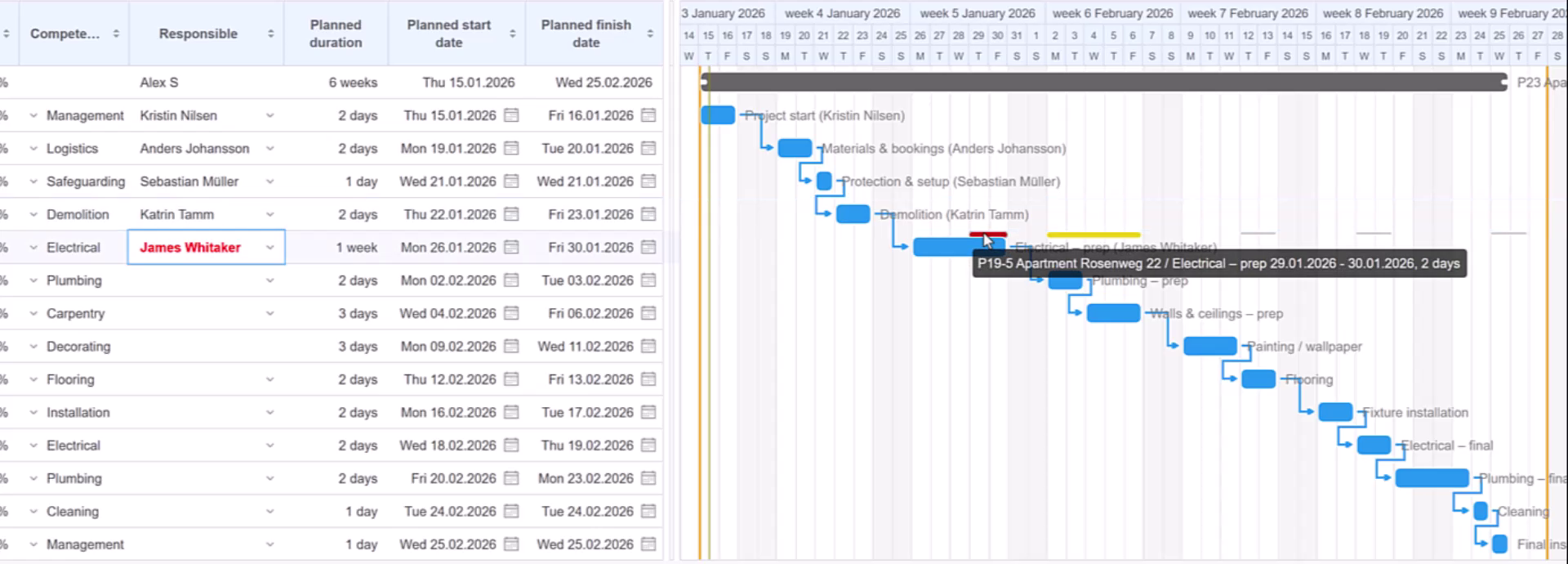
Review the conflict
Inspect the overlapping assignments before deciding which work to move.
Adjust people or dates
Choose another suitable resource or revise the timing, then review the affected commitments together.
Resource suggestions follow your selected rule for competence and availability.
Explore Skills & Competences →LOOK BACK
Compare the plan with the work reported.
Review the previous month, ending where the forward-looking plan begins. The project mix includes work from that earlier period. Compare planned and reported hours to see where the work differed from the estimate.
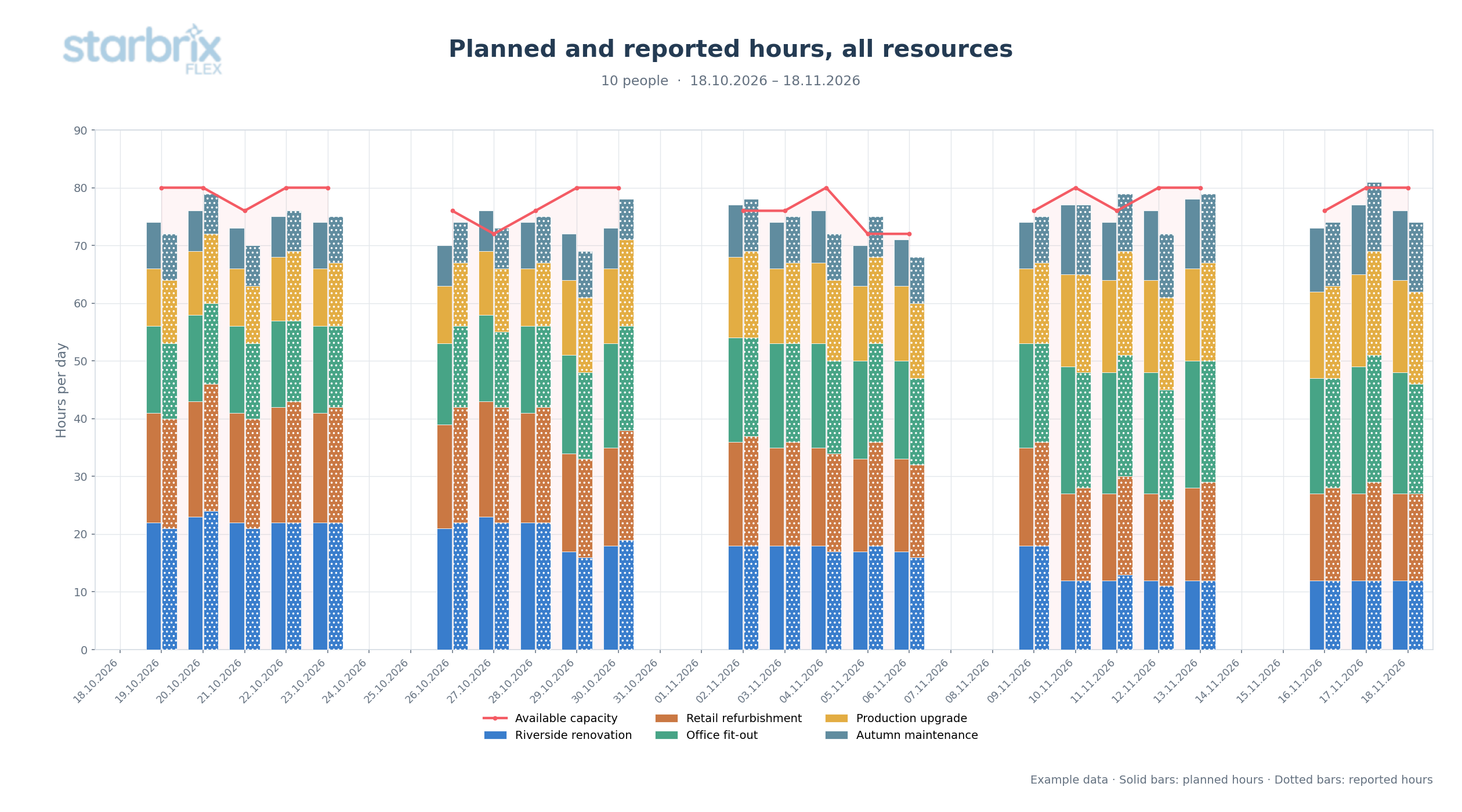
Include completed projects and tasks when needed, and show the chart data in a table to inspect exact figures.
Explore Time Reports →WEEKLY AND MONTHLY OVERVIEW
Compare remaining work with each person’s capacity.
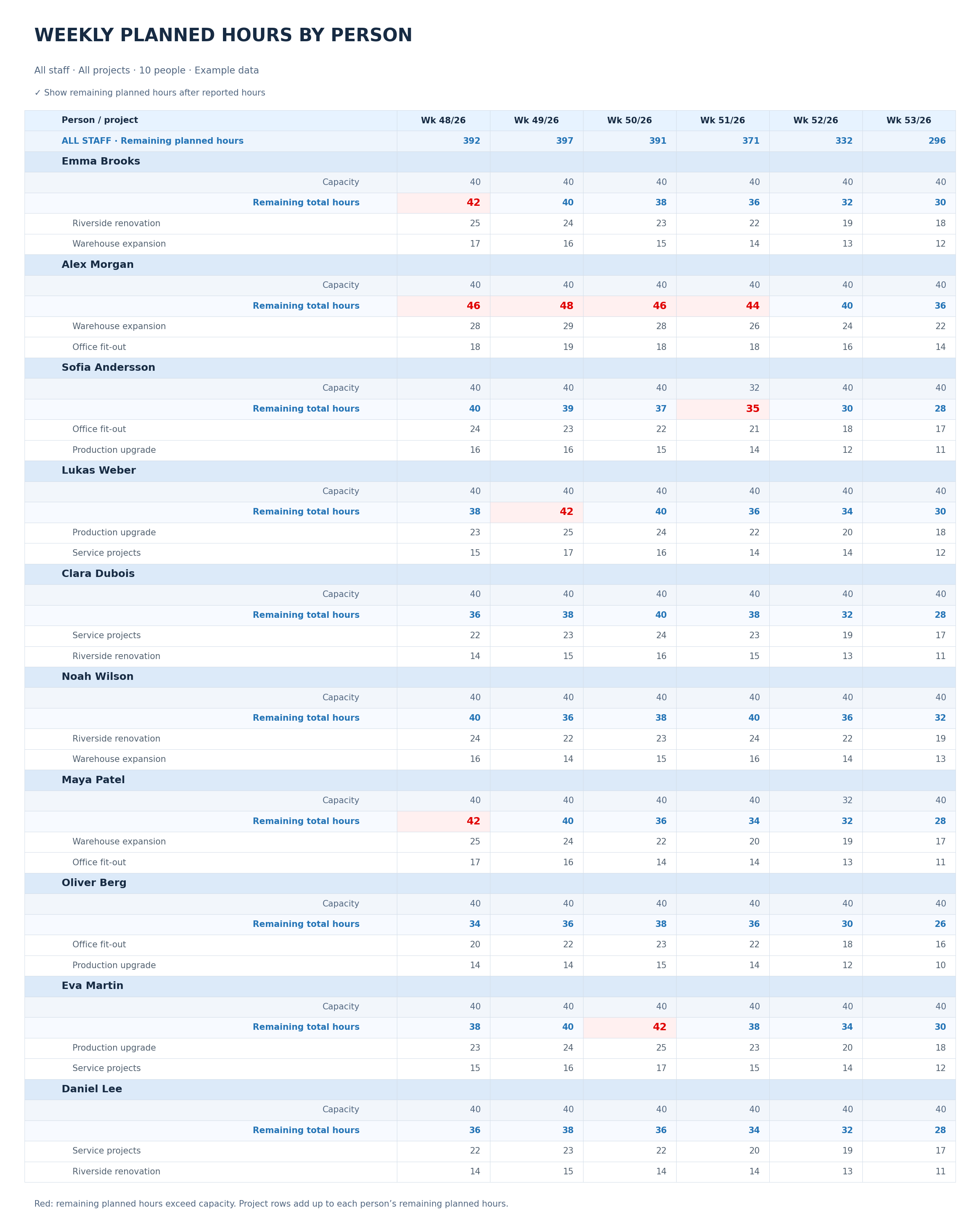
The staff total provides the overall picture, while individual totals reveal imbalances. Expand each person’s project breakdown to see what contributes to their remaining planned hours. Review the table by week or month.
With “Show remaining planned hours after reported hours” selected, this view focuses on the planned work still remaining after reported hours have been deducted.
BUILD ON A REALISTIC PLAN
Connect workload with hours and capacity.
Hour Planning
Estimate the work and specify each person’s contribution. Plan within fixed dates or calculate a finish date from the hours, start date, and resource capacity.
Explore Hour Planning →Capacity Planning
Define daily capacity and personal exceptions. Account for working days, holidays, vacations, and calendar notes that reduce capacity.
Explore Capacity Planning →YOUR QUESTIONS ANSWERED
Frequently Asked Questions
Can I review workload across projects?
Yes. Review assignments within one project, across all projects, or within a Workspace. Hour charts can show selected people, Workspace or competence-area members, or the whole staff.
How are resource conflicts shown and resolved?
Flex highlights the resource’s name in red and shows a red conflict bar. Thin bars show other commitments. Review what overlaps, then choose another suitable person or adjust the task dates.
Does overlapping work always mean there are too few available hours?
Overlapping task periods do not by themselves tell you how many hours are needed. Compare the planned workload with available capacity to assess whether the person can handle the work.
Can I inspect hours by person or project?
Yes. The person view shows the projects behind each person’s planned hours. The project view shows the people assigned and their planned contribution in each period.
Can I review workload by day, week, or month?
Yes. Select the period and review hours by day, week, or month. Charts can combine the selected hour plans or show separate diagrams, with colors by project or person, or totals without a breakdown.
Can I compare planned and reported hours?
Yes. Include reported actual hours in the chart to compare them with the plan. Matching colors identify projects, and patterned bars distinguish reported hours. You can also include completed projects and tasks.
What does the remaining-hours table show?
With “Show remaining planned hours after reported hours” selected, it shows planned work still remaining after reported hours have been deducted. Compare each person’s remaining planned hours with capacity and inspect the contributing projects.
Can I focus on overloads or a competence group?
Yes. Use the resource overload filter to focus on assignments needing attention. In Tasks by Person, filter by competence to review a particular skill group.
Make room for the work ahead.
Balance existing commitments and see when your team has capacity for new projects.
Start Free60-day free trial. All features included.