HOUR PLANNING
Plan the hours. See how they fit the schedule.
Estimate work for projects and tasks. Distribute hours within fixed dates, or let planned work and available capacity determine the schedule.
Start Free60-day free trial. All features included.
WORK AND TIME
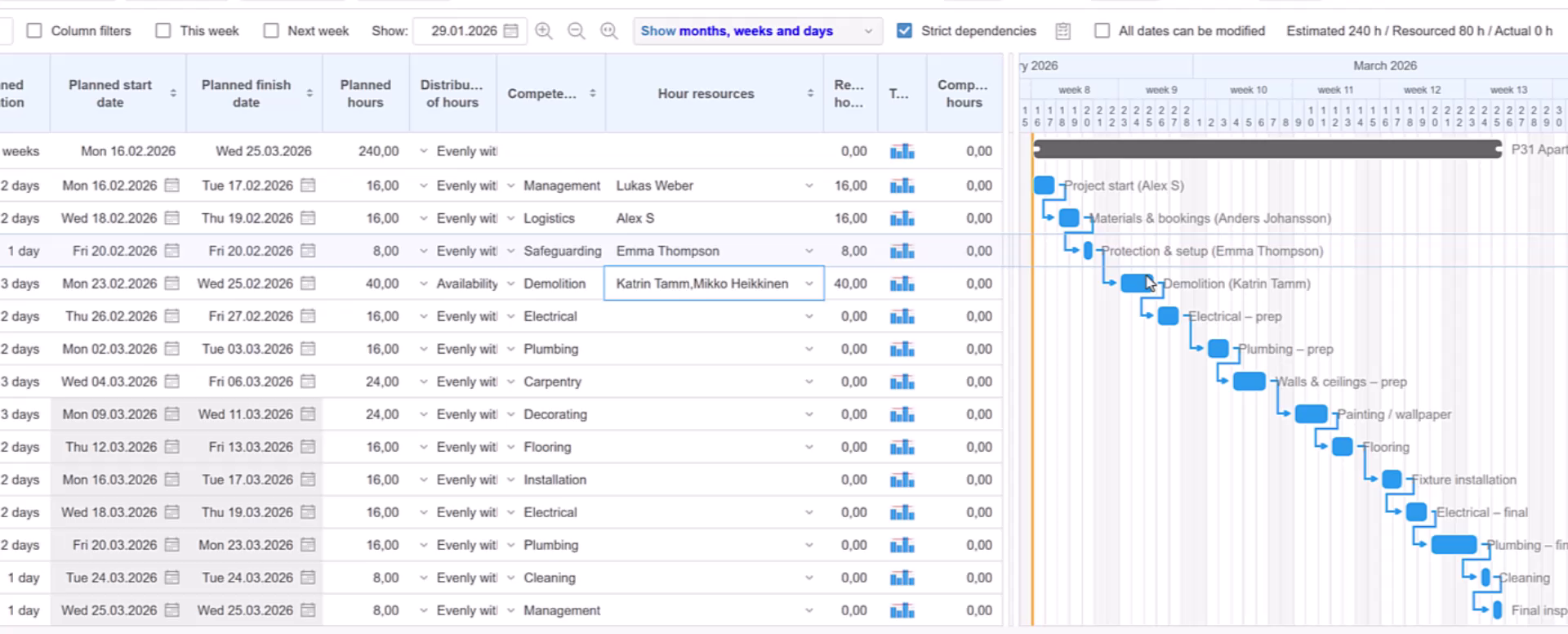
Work hours and task duration are different.
A task scheduled from Monday to Friday may need 30 hours of work—not five full days from every person assigned to it. Planned hours describe the work to be done; the dates define the window for completing it.
Start with a single estimate for the whole project, or enter planned hours task by task in the Gantt chart’s hour-planning mode.
TWO WAYS TO PLAN
Start with the deadline or with the workload.
Plan within fixed dates
Keep the planned start and finish dates, distribute work hours across that period, and assess how the work fits the resources’ available capacity.
Schedule from hours and capacity
Enter the work required in hours, set a start date, and select a resource. Starbrix calculates the task’s finish date based on that resource’s available capacity.
CHOOSE YOUR RESOURCES
Compare available hours before assigning work.
When resource suggestions are set to hour planning, Flex lists all people with the required competence. Each name shows the hours available during the task period in parentheses, so you can compare options and combine people.
| Planned work | Competent person | Available hours |
|---|---|---|
| 30 hours | Emma Brooks | 24 hours |
| Same task | Alex Morgan | 16 hours |
Emma’s 24 available hours do not cover the full estimate alone. Select Emma and Alex, then specify how to split the 30 hours—for example, 20 hours for Emma and 10 hours for Alex.
Explore competence-based resource suggestions →ADJUST THE PLAN
See what changes when the work changes.
When scheduling from hours and capacity, increasing the planned work can move the finish date. Adding another person with available capacity can bring it forward.
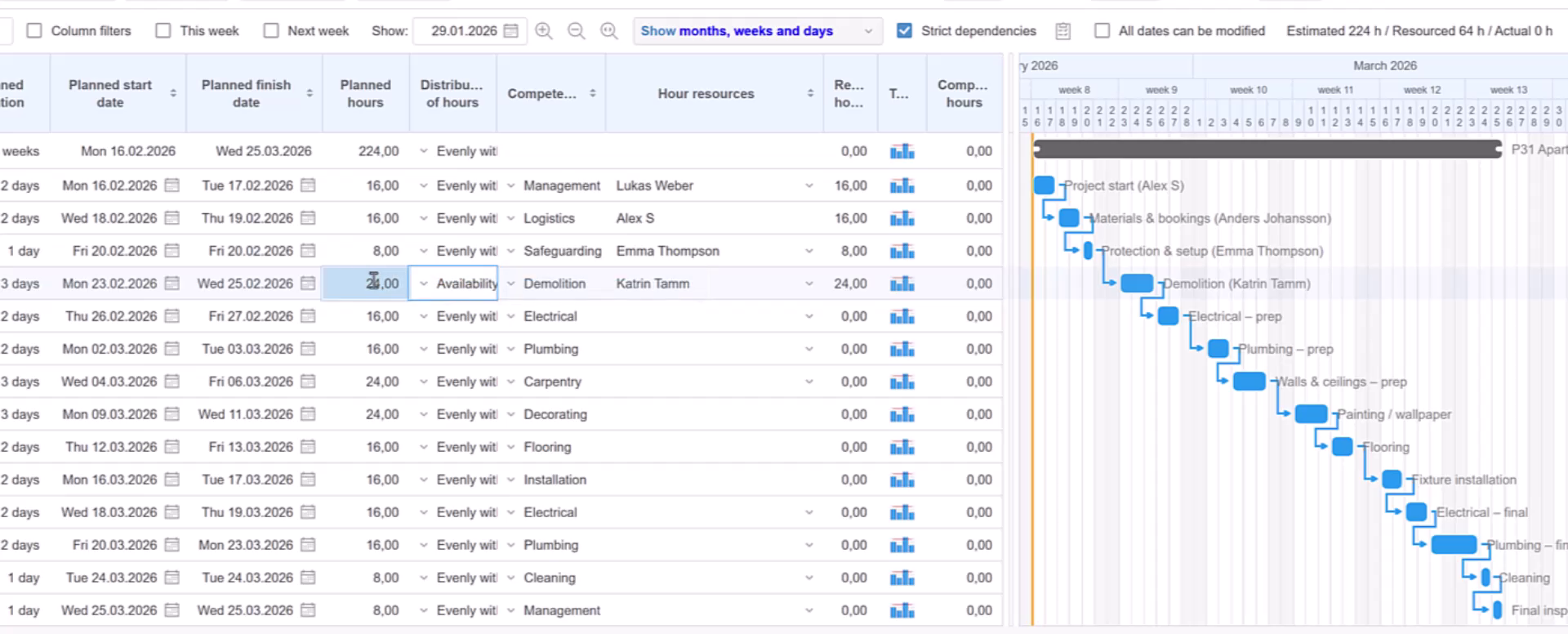
More work, same capacity
In capacity-based scheduling, more planned work can require a later finish date.
More available capacity
In capacity-based scheduling, sharing the work can bring the finish date forward, depending on the resources’ available hours.
REALISTIC AVAILABILITY
Plan with the capacity people actually have.
Available hours reflect working days, common holidays, personal capacity periods, and calendar notes marked to reduce capacity. Hours already planned for other projects also affect what remains for new work.
Explore Capacity Planning →REVIEW THE PLAN AND FOLLOW THE OUTCOME
From team totals to daily assignments.
The examples below use a fictional ten-person team. Inspect daily assignments, compare upcoming plans and past results, and finish with the weekly workload overview.
Select all resources, people with planned work, people without planned work, or selected people and teams. Review the period by day, week, or month. In charts, use project or person colors to show the breakdown.
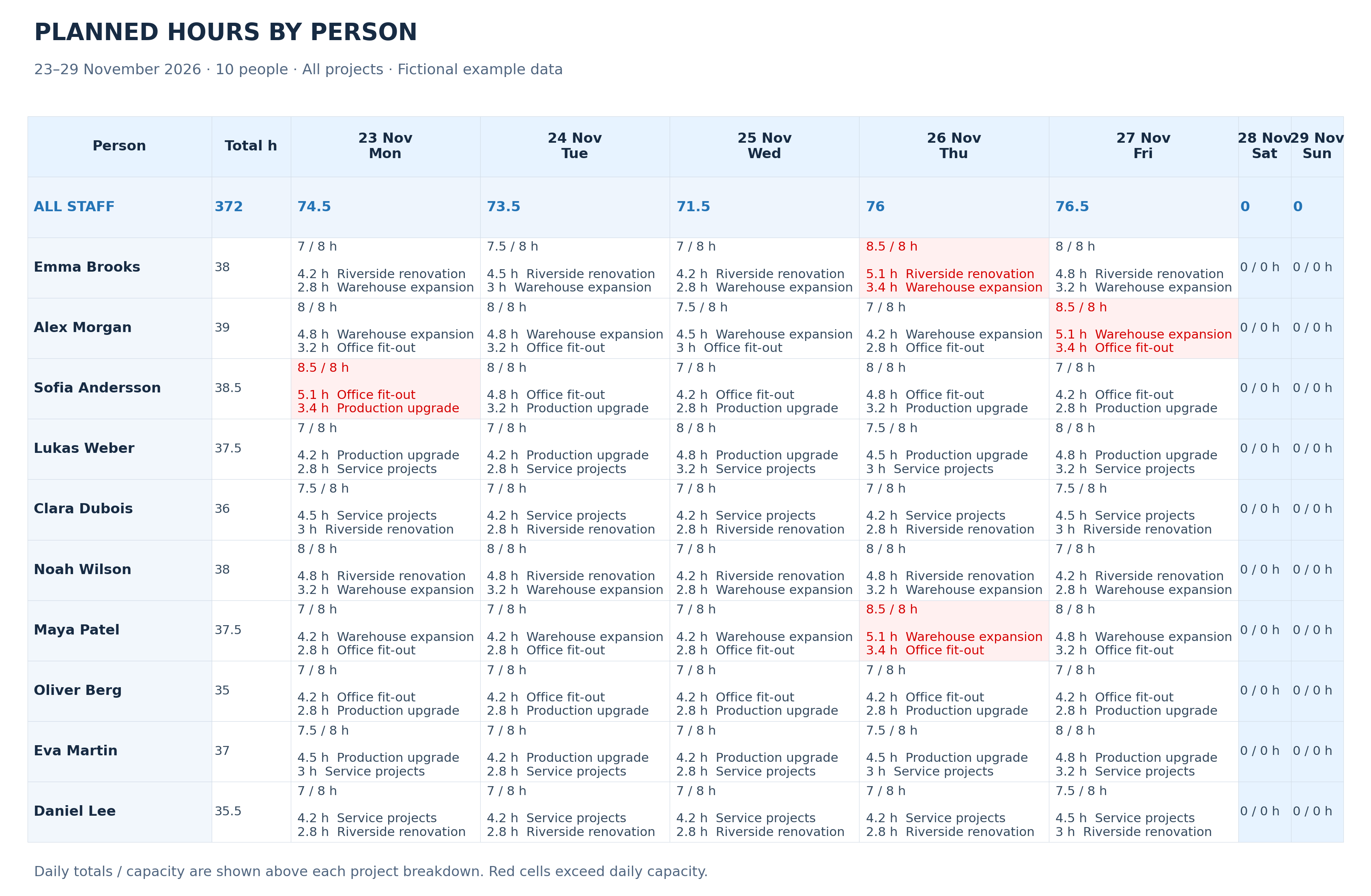
By person: inspect the daily workload.
See each person’s total and the projects behind each working day. Compare planned hours with that day’s capacity to decide which assignments need attention.
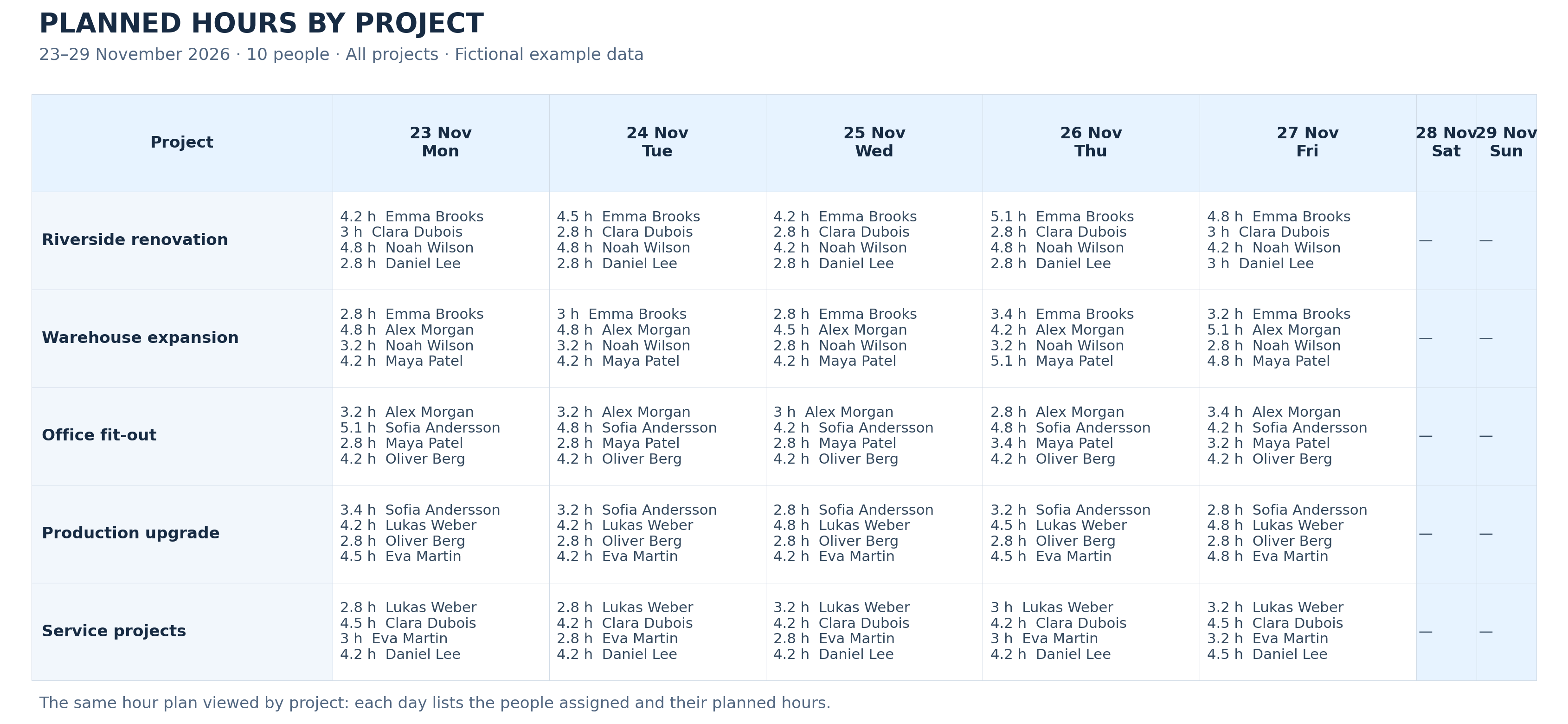
By project: see who will contribute.
Switch the left column to projects to see the assigned people and their planned contribution in each period.
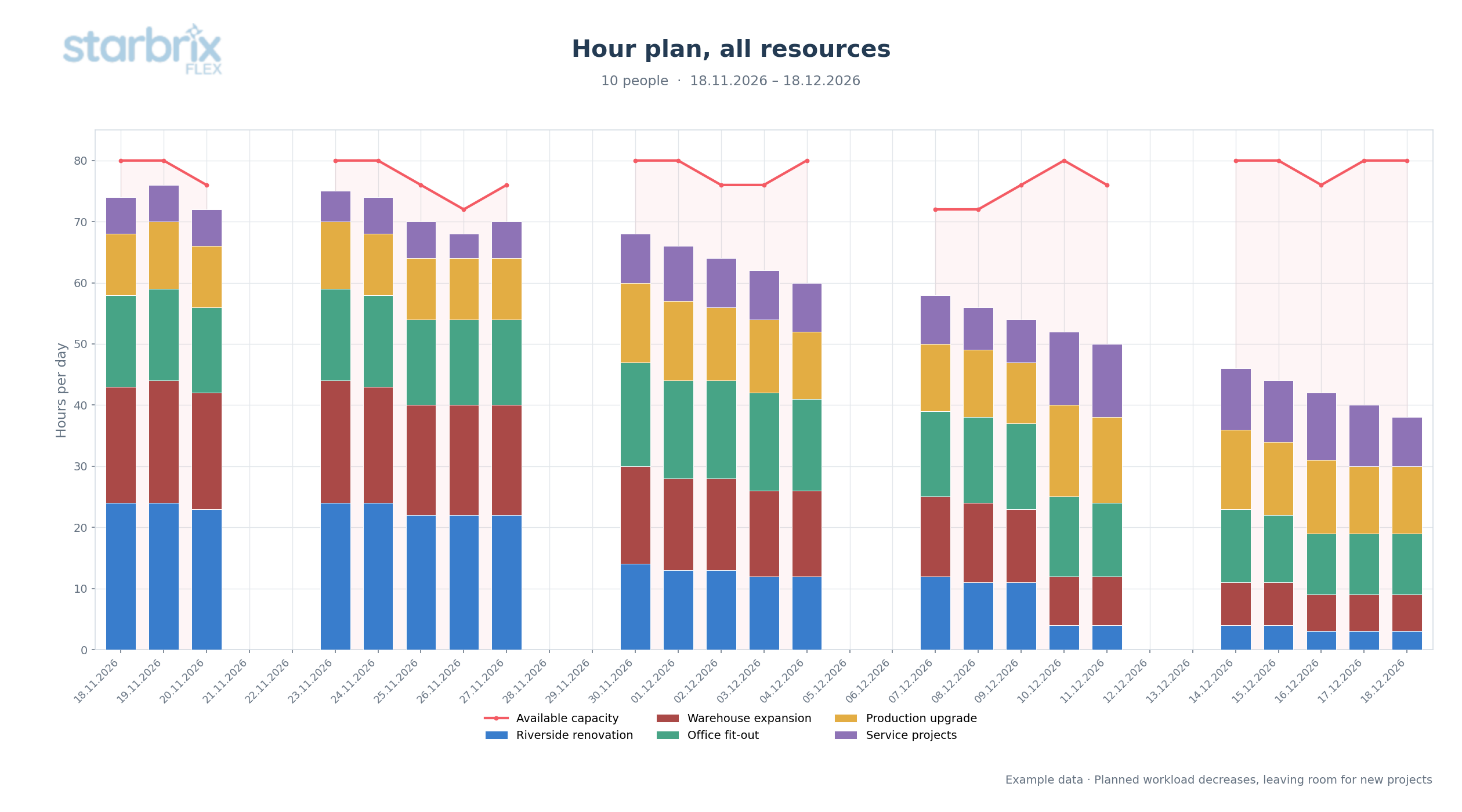
Look ahead: see room for new projects.
Review upcoming planned work against capacity. As currently scheduled work finishes, the plan shows more capacity for additional projects.
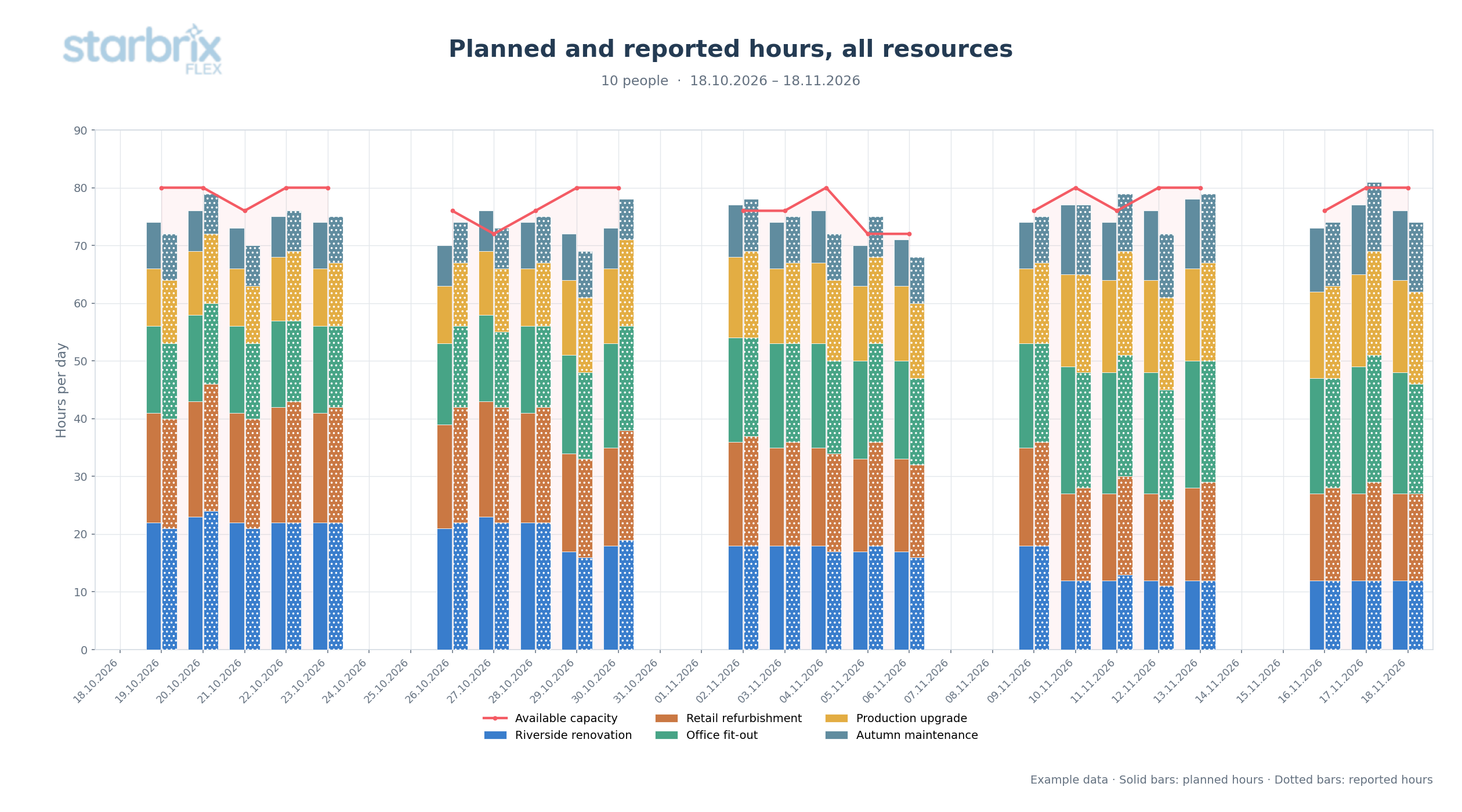
Look back: compare the plan with reported work.
Review the previous month’s plan alongside reported hours. Solid bars show planned hours; dotted bars show reported hours in matching project colors. The previous month includes a different mix of projects.
Explore Time Reports →
WEEKLY AND MONTHLY OVERVIEW
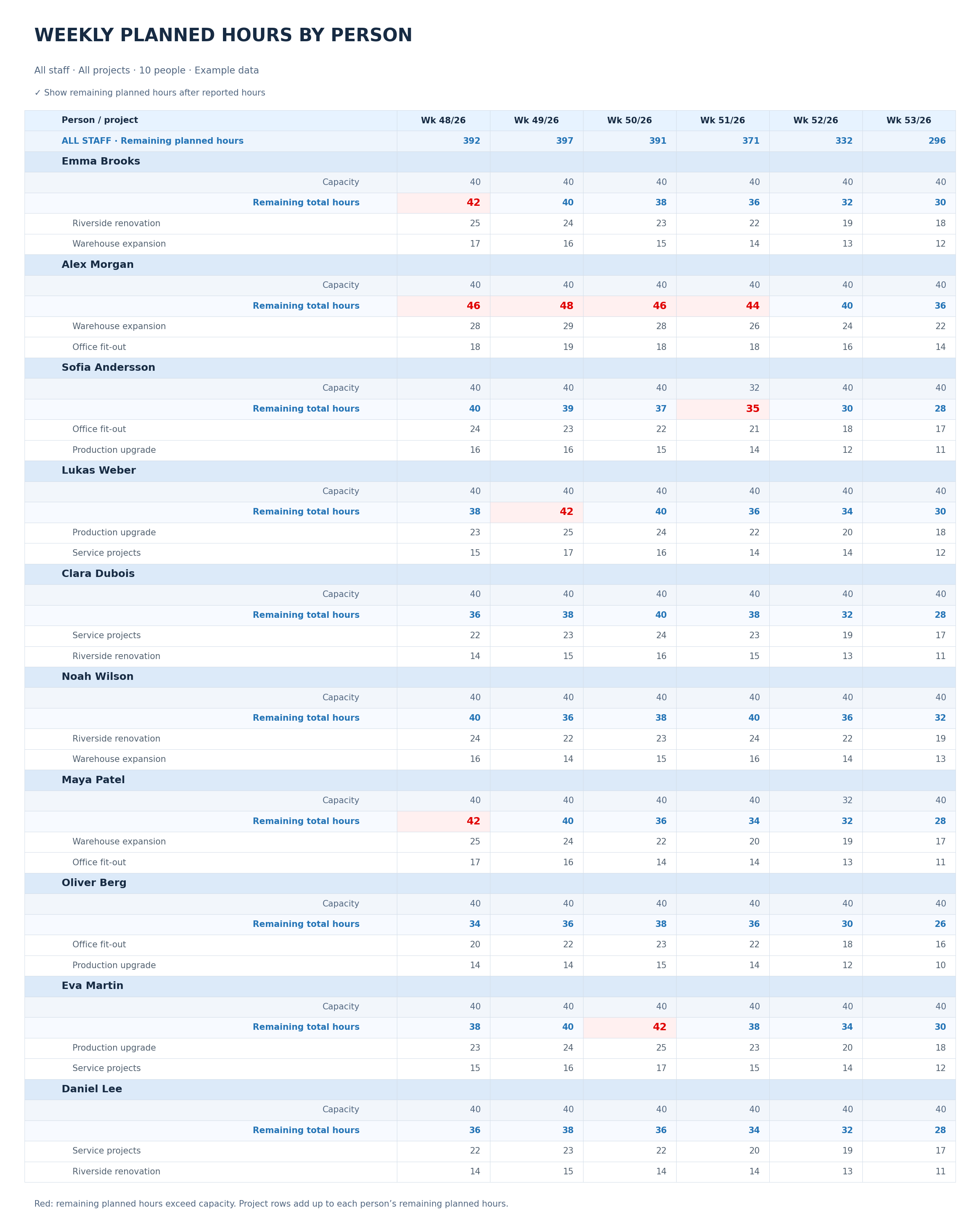
Compare remaining work with each person’s capacity.
Compare capacity with remaining planned hours, then expand the project breakdown to understand each person’s workload. The same view can also be shown by month.
YOUR QUESTIONS ANSWERED
Frequently Asked Questions
How are planned hours different from task duration?
Planned hours describe the amount of work. Task dates define the period in which that work should be completed. A task scheduled from Monday to Friday does not necessarily require five full working days.
Can I estimate hours for a whole project?
Yes. Start with one workload estimate for the project, or plan hours for individual tasks when you need more detail.
Can I keep task dates fixed?
Yes. Distribute planned hours within a fixed start and finish period, then compare the work with the resources’ available capacity.
How does Flex calculate the finish date?
Enter the work required in hours, set a start date, and select a resource. Starbrix calculates the task’s finish date based on the resource’s available capacity. In this planning mode, changes to workload or available capacity can change the finish date.
Can several people share the planned work?
Yes. Specify each person’s planned contribution—for example, 20 hours of a 30-hour task for one person and 10 hours for another. With hour-planning resource suggestions, all competent people are listed with their available hours in parentheses.
Can I review the plan by person or by project?
Yes. Switch the detailed view between people and projects. By person, see the projects behind each person’s workload. By project, see the people assigned and their planned contribution.
Can I review hours by day, week, or month?
Yes. Choose the time period and display planned hours by day, week, or month. Review selected people, groups, or the whole team.
What are remaining planned hours?
With the remaining-hours option selected, the table shows planned work still remaining after reported hours have been deducted. Compare it with each person’s capacity to identify overloads.
Can I compare planned and reported hours?
Yes. Include reported actual hours in the chart to compare the plan with reported work. Matching project colors identify the work, while patterned bars distinguish reported hours.
What affects available capacity?
Working days, common holidays, personal capacity periods, calendar notes marked to reduce capacity, and hours already planned for other projects affect availability.
Build schedules on realistic work estimates.
Bring planned hours, people, and available capacity into one project plan.
Start Free60-day free trial. All features included.