PROJECT TIME TRACKING
Track project time without complicating the work.
Enter hours, record start and finish times, or use a timer. Keep reported time connected to your projects and tasks, then review it in flexible reporting views.
Start Free60-day free trial. All features included.
Flexible entry
Choose durations, exact times, or a timer.
Daily or weekly reporting
Use the reporting window or weekly grid.
Useful project history
Understand where effort was spent.
CONNECT TIME TO THE WORK
Report time for a project or a specific task.
Use project-level entries for work such as coordination. Select a task when you want to record time for a particular activity.
| Project | Task | Description | Hours |
|---|---|---|---|
| Customer delivery | — | Project coordination | 2 |
| Customer delivery | Technical drawings | Updated installation drawings | 3.5 |
THREE REPORTING METHODS
Choose how to record your time.
These examples show alternative ways to record the same 3.5 hours spent on Technical drawings in Customer delivery.
Enter hours
Enter the amount of time worked when exact working times are not needed.
Start and finish
Enter when work began and ended.
Use the timer
Start timing when you begin the activity and stop when you finish.
Simplified examples of the three methods. Choose one method for the work being recorded.
Starbrix Flex offers mobile-optimized time reporting, so people can report project and task hours away from their desks.
WEEKLY HOUR REPORTING
Report the week in one clear grid.
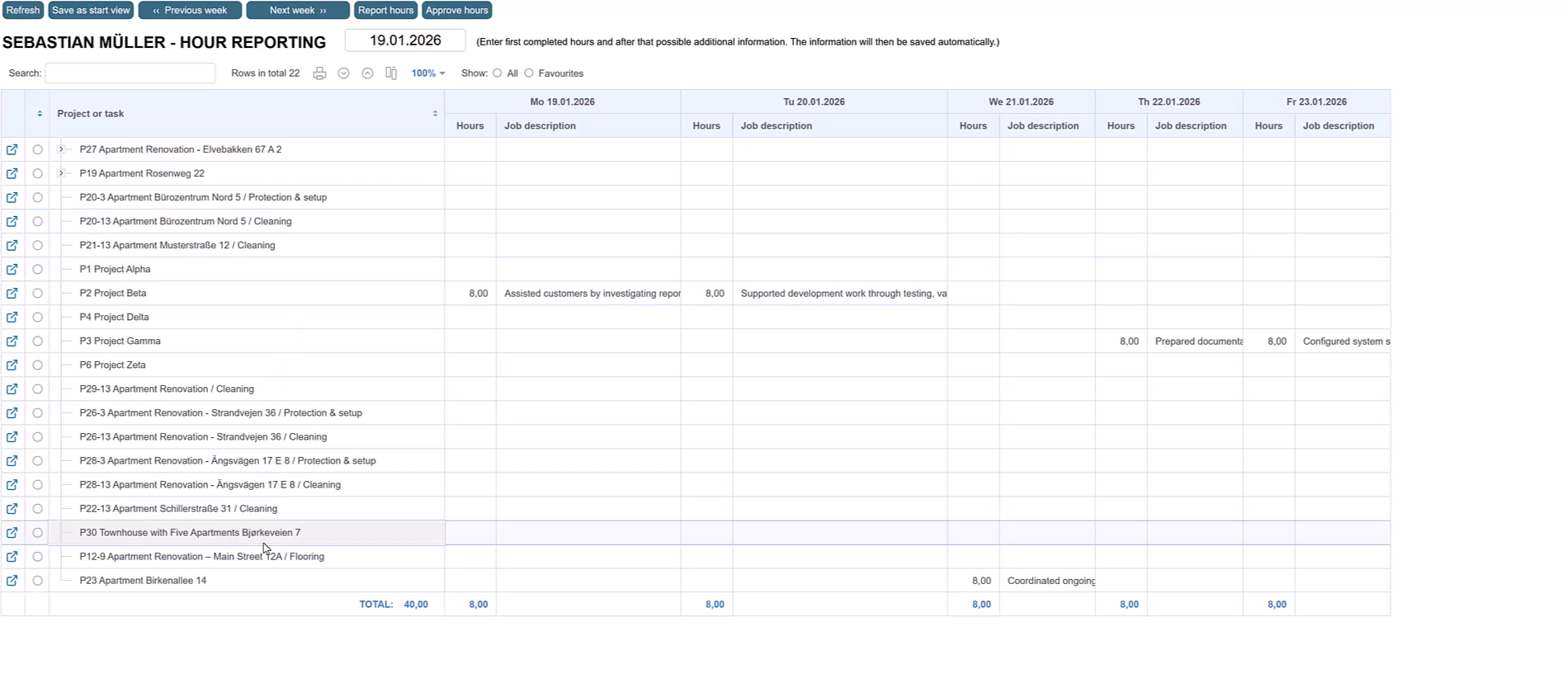
The weekly view automatically lists the projects and tasks you are working on during the selected week. Enter hours and a short work description directly in the day columns, and review daily and weekly totals.
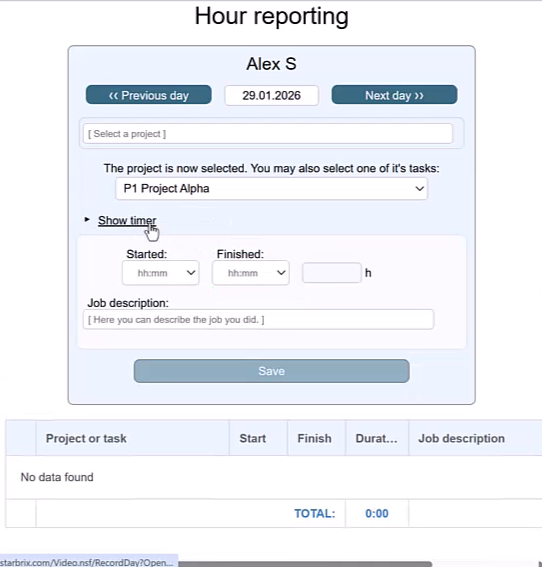
Prefer to focus on one day? Use the reporting window to select a project and, if needed, a task. Enter the hours and an optional description. The daily total appears at the bottom.
REVIEW YOUR TIME RECORDS
Find, check, and export your time records.
Search, filter, sort, and group entries by person, project, or reporting period. Access rights determine which records you can see.
| Date | Project / task | Hours | Description |
|---|---|---|---|
| Nov 2 | Customer delivery / Technical drawings | 3.5 | Prepared installation drawings |
| Nov 3 | Customer delivery / Technical drawings | 2 | Reviewed customer requirements |
| Nov 3 | Customer delivery | 1 | Project coordination |
Check the details
Confirm dates, durations, projects, and tasks. Check the period for forgotten activities.
Keep records useful
Add meaningful descriptions and correct mistakes according to your permissions and workflow.
Export to Excel
Export time information for further analysis, customer reporting, or administration.
OPTIONAL APPROVALS
Add review and approval when needed.
Use time reporting on its own or configure an approval process. The approval guide explains the available stages and responsibilities.
Explore Timesheet Review & Approval →CONNECTED PROJECT FOLLOW-UP
Read hours alongside project progress.
Reported hours show the effort spent. Completion shows how much work is finished. A task can take substantial time and still have work remaining.
Review time records together with remaining tasks, dates, and project progress to understand the situation and agree on next steps.
Explore Project Progress & Dashboards →HOUR STATEMENTS
Turn recorded time into Hour Statements.
Use the time already recorded against projects and tasks to prepare personal statements for external financiers, with work descriptions and the required cost information.
Explore Hour Statements →TIME REPORTS
See where the reported hours went.
Create detailed time reports or compare projects and people in a matrix. Choose the period, records, columns, and grouping you need, include planned hours, and print or export the result.
Explore Time Reports →ANSWERS TO COMMON QUESTIONS
Frequently asked questions
Can I report project time on my smartphone?
Yes. Starbrix Flex provides mobile-optimized time reporting for project and task hours.
Can I report time for individual tasks?
Yes. Record time against an individual task or against the project as a whole.
Can I enter hours without exact working times?
Yes. Enter the number of hours worked without providing start and finish times.
Does Starbrix Flex include a timer?
Yes. Select the project or task and start a timer, or enter start and finish times manually.
How does weekly hour reporting work?
The weekly view automatically lists the projects and tasks you are working on during the selected week. Enter hours and short work descriptions directly in the grid.
Can I report time from a project or task?
Yes. Open the project or task, go to Completed hours, and choose Report more hours.
Can I compare and export reported hours?
Yes. Compare planned and actual hours in charts and use list-based reports. Print reports, save as PDF, or export to Excel.
Can the approval table also be used for reporting time?
Yes. Employees can add, edit, or remove entries directly in the approval table and use it as their main time reporting view.
Keep every reported hour connected to the work.
Give your team practical time entry and your project managers useful records for review and future planning.
Start Free60-day free trial. All features included.