
USER MANAGEMENT & PERMISSIONS
Invite your team. Control who can view and edit.
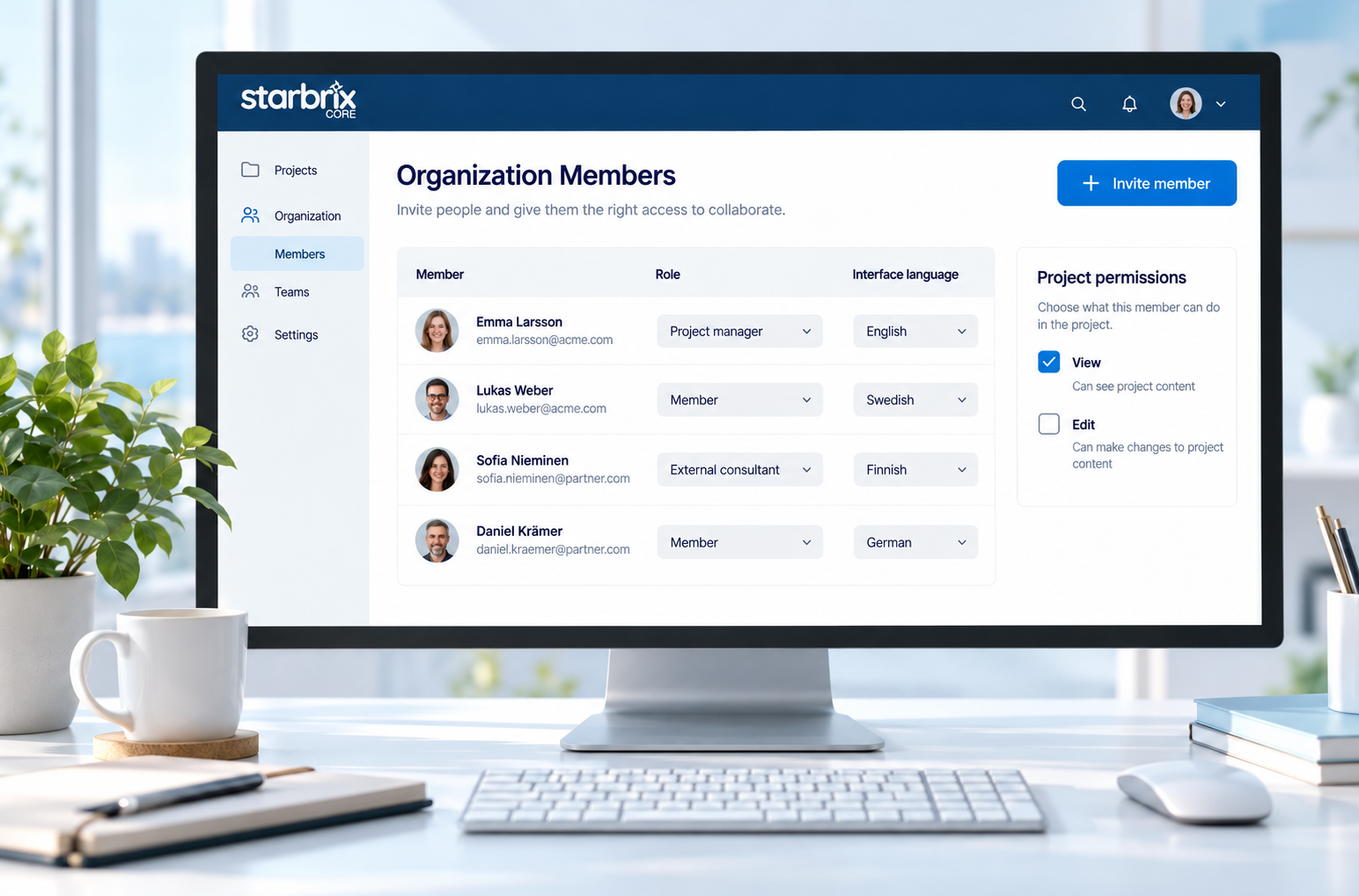
Bring colleagues and external partners into your organization. Start with default permissions and adjust access to projects and tasks when needed.
Start FreeFree forever for teams of up to 3 members.
Individual accounts
One person can join several organizations.
Flexible permissions
Control visibility and editing rights.
27 interface languages
Each user chooses their own language.
GET YOUR TEAM STARTED
Invite people. Set responsibilities. Adjust access.
1. Invite members
Invite colleagues or external partners to your organization. New users create a personal account; existing users can use their current account.
2. Assign responsibilities
Choose project managers, task responsibles, and participants so people know where they contribute.
3. Adjust access when needed
Start with practical default permissions. Customize viewing and editing rights as your requirements develop.
THREE DIFFERENT QUESTIONS
Separate membership, responsibility, and access.
Organization membership
Which organization does this person work in? Membership connects their personal account to that organization.
Project and task responsibilities
What work should they manage or contribute to? Assign a project manager, task responsible, or participants.
Permissions
What information can they view or edit? Use access settings alongside responsibilities to support your working practices.
VIEWING AND EDITING
Choose the access the work requires.
Control who can view project information and who can change it. Project, task, and resource permissions let you adapt access where more specific controls are needed.
CONCEPT EXAMPLE · ACCESS TO A PROJECT
View
A person with viewing access can consult the project information made available to them.
Edit
A person with editing rights can also update the information their permissions allow them to change.
For an internal management project or an external collaborator’s assignment, review access to match the intended participation.
Watch: Member and project permissions →COLLEAGUES AND EXTERNAL PARTNERS
One account. A complete view of your work.
Work in several organizations with one personal account. Your personal list views bring together your assignments across organizations and your own activities. Your personal calendar shows scheduled activities together, giving you an overview of all your commitments.
EXAMPLE · EMMA’S PERSONAL ACCOUNT
ORGANIZATION A · CUSTOMER A
Review delivery plan
Emma’s project assignment
ORGANIZATION B · CUSTOMER B
Check design drawings
Emma’s project assignment
PERSONAL
Prepare course material
Emma’s own activity
ONE PERSONAL OVERVIEW
Emma’s activities across organizations and personal work
Personal list views
See assignments from different organizations together with personal activities.
Personal calendar
See scheduled activities together to understand the commitments across all your work.
A consultant can follow assignments from different customers alongside personal activities without opening each organization separately. The assignments remain connected to their original organizations and retain their access permissions.
27 INTERFACE LANGUAGES
Same project. Your preferred language.
Each person chooses their own interface language while working in the same shared project.
The setting changes the interface. Project names, task descriptions, documents, and other user-created content remain in the language in which they were written.
STEP-BY-STEP HELP
Set up your team with practical guidance.
Invite members
See how to invite people and how they join your organization.
Watch: Inviting new members →Manage permissions
Learn how member and project permissions control access.
Watch: Member and project permissions →Personal views help members find relevant work. Optional Workspaces bring a team’s activities together across projects.
Core is free forever for teams of up to 3 members. See plans and user types →
ANSWERS TO COMMON QUESTIONS
Frequently asked questions
How do I invite colleagues and external partners?
Invite them to your Starbrix Core organization. They can join with an existing personal account or create an account if they are new to Core.
Can one account belong to multiple organizations?
Yes. Each person has a personal account that can join several organizations. Each organization retains its own projects, memberships, and permissions.
Do we need to configure permissions before starting?
No. Start with practical default permissions and customize viewing and editing rights when your requirements call for it.
How are responsibilities different from permissions?
Responsibilities identify the work a person manages or contributes to. Permissions determine which information they can view or edit.
Can we control access to projects and tasks?
Yes. Configure visibility and editing rights for projects, tasks, and resources according to your working practices.
Can each member choose their own interface language?
Yes. Core supports 27 interface languages. Members can use different interface languages while working in the same project.
Are project descriptions automatically translated?
No. Language preferences apply to the interface. Project names, descriptions, documents, and other user-created content remain in their original language.
Give everyone a clear place in the project.
Invite members, establish responsibilities, and adapt access as your organization grows.
Start FreeFree forever for teams of up to 3 members.