
TIME TRACKING & APPROVALS
Track project time. Review and approve reported hours.
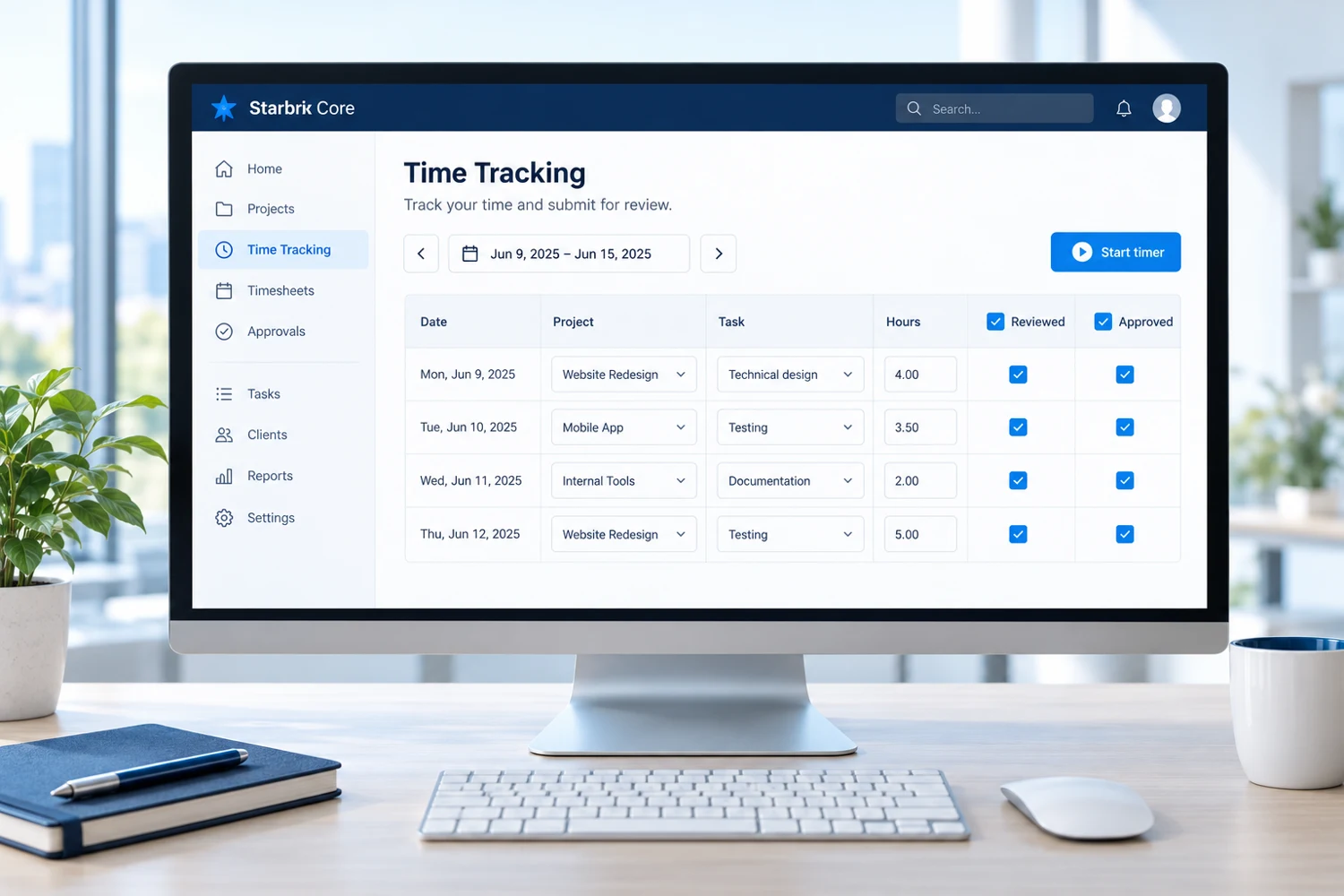
Report time against projects and tasks using hours, start and finish times, or a timer. Review entries and choose the approval process your organization needs.
Start FreeFree forever for teams of up to 3 members.
Three reporting methods
Hours, start and finish times, or a timer.
Project and task records
Connect time to the work performed.
Optional approvals
Choose the process your team needs.
FROM TIME ENTRY TO APPROVED HOURS
Report the work. Review the records.
Project Time Tracking
Record hours against a project or task. Report time for one day or a selected period, review the entries, and export records to Excel.
Explore Project Time Tracking →Timesheet Review & Approval
Check time entries and use the approval stages your organization needs. Assign reviewers and approvers to match responsibilities.
Explore Timesheet Review & Approval →THREE WAYS TO REPORT TIME
Choose the method that fits the work.
Enter hours
Enter the duration worked without specifying exact start and finish times.
Start and finish times
Record when the work started and ended.
Use a timer
Start timing when you begin an activity and stop when you finish.
Selected period: November 2–3. Add separate entries for different projects and tasks under each day.
| Date / day total | Project / task | Time |
|---|---|---|
| November 2 | 5 h | |
| November 2 | Customer delivery / Technical drawings | 3 h 30 m |
| November 2 | Product development / Documentation | 1 h 30 m |
| November 3 | 3 h | |
| November 3 | Customer delivery / Technical drawings | 2 h |
| November 3 | Product development / Project coordination | 1 h |
| Total for selected period | 8 h | |
Starbrix Core is fully optimized for smartphones, so people can report project time away from their desks.
REVIEW REPORTED TIME
Check the work behind the hours.
Search, filter, sort, and group entries for a project, person, or reporting period, according to your access rights. Descriptions help explain what was done.
| Date | Person | Project / task | Hours | Description |
|---|---|---|---|---|
| Nov 2 | Alex | Customer delivery / Technical drawings | 3.5 | Updated installation drawings |
| Nov 2 | Mia | Customer delivery | 1.5 | Project coordination |
Review individual rows or use the top-row checkbox to approve or unapprove multiple eligible entries. Required earlier stages still apply. Export time records to Excel when needed.
OPTIONAL APPROVALS
Choose the approval process you need.
No formal approval
Employee records timeReview the records through normal working practices. There is no additional formal approval stage.
Single-stage approval
Employee records timeDesignated approver approvesOne management approval stage, without a separate preliminary reviewer.
Review and final approval
Employee records timeReviewer checks entriesApprover gives final approvalTwo management stages: checking the entries, then final authorization.
Required steps cannot be skipped, including when multiple entries are approved together.
Explore Timesheet Review & Approval →CONNECTED PROJECT FOLLOW-UP
Read hours alongside project progress.
ANSWERS TO COMMON QUESTIONS
Frequently asked questions
Can employees track time directly in Starbrix Core?
Yes. Enter the number of hours worked, record start and finish times, or use a timer.
Can time be reported for individual project tasks?
Yes. Time entries can be connected to projects or individual project tasks.
Can employees report time for more than one day?
Yes. Select a date range to report time in a table grouped by day. Each day can contain separate entries for several projects and tasks.
Can we use time tracking without approvals?
Yes. Use time tracking without formal approval, with a single approval stage, or with review followed by final approval.
How do review and approval differ?
Review checks the reported information. Final approval authorizes eligible entries after required earlier steps. Where configured, the employee’s own reporting approval precedes management review or approval.
Can different employees have different reviewers and approvers?
Yes. Configure reviewers and approvers for individual organization members.
Can a manager approve multiple entries?
Yes. Authorized users can use the top-row checkbox to approve or unapprove multiple eligible entries. Required earlier workflow stages still apply.
Can we export time records to Excel?
Yes. Time reporting information can be exported to Excel for additional reporting, analysis, or administrative use.
Make time tracking easier for everyone.
Connect flexible time entry, useful project records, and approvals that match your organization.
Start FreeFree forever for teams of up to 3 members.