PROJECT DOCUMENT MANAGEMENT
Keep project documents organized, current, and within reach.
Connect files and links to projects and tasks. Organize larger document collections into folders and subfolders, keep earlier versions, and share the right documents with your team and external stakeholders.
Start Free60-day free trial. All features included.
PROJECT FILES AND TASK DOCUMENTS
Put each document where it belongs.
Add file attachments and your own links at the bottom of the project page. Attach as many files as you need, including large files, or link to existing documents and folders. Open a task to find the same attachment and link options at the bottom of its page. These project and task files and links also appear in Gantt and Task Table views.
Project documentation
Add agreements, plans, and reference materials directly at the bottom of the project page.
Task-specific files
Open a task and add files or links at the bottom of its page. Find them again in Gantt or Task Table.
External document links
Link to a folder, file, or web page in OneDrive, SharePoint, Google Drive, or another service.
External links keep the permissions of their original service. Adding a link in Flex does not grant access to that resource.
Explore Task Management →FOLDERS AND SUBFOLDERS
Give larger document collections a clear structure.
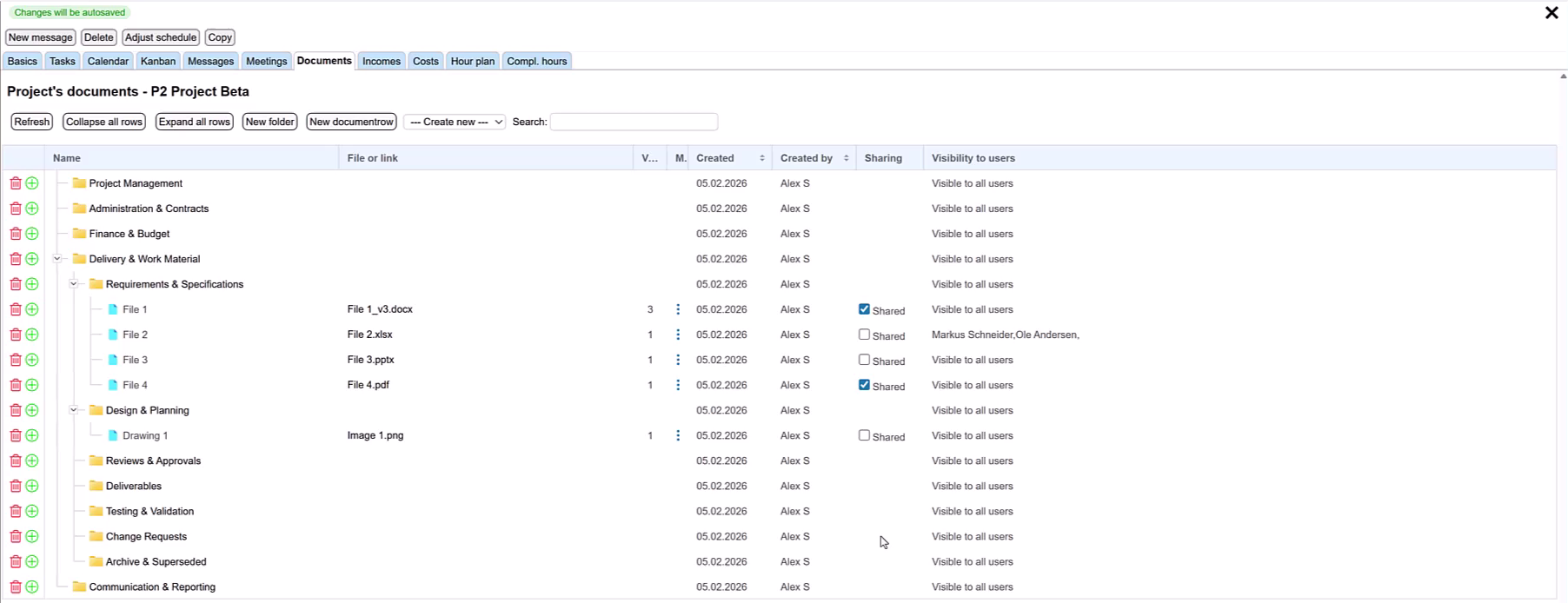
Gather project documents in one dedicated view. Create folders and subfolders to suit the project, then add document rows exactly where they are needed. Upload files or link to existing resources without losing the project context.
SHARING AND ACCESS
Share the right documents with the right people.
Send documents to external stakeholders by e-mail, even when they are not Starbrix users. Recipients can open and download the shared document from the link in the message.
Keep confidential material restricted to authorized users. Document visibility and external sharing let you make useful information available while controlling access to sensitive content.
BUILT-IN VERSION CONTROL
Work with the current version. Keep the history.
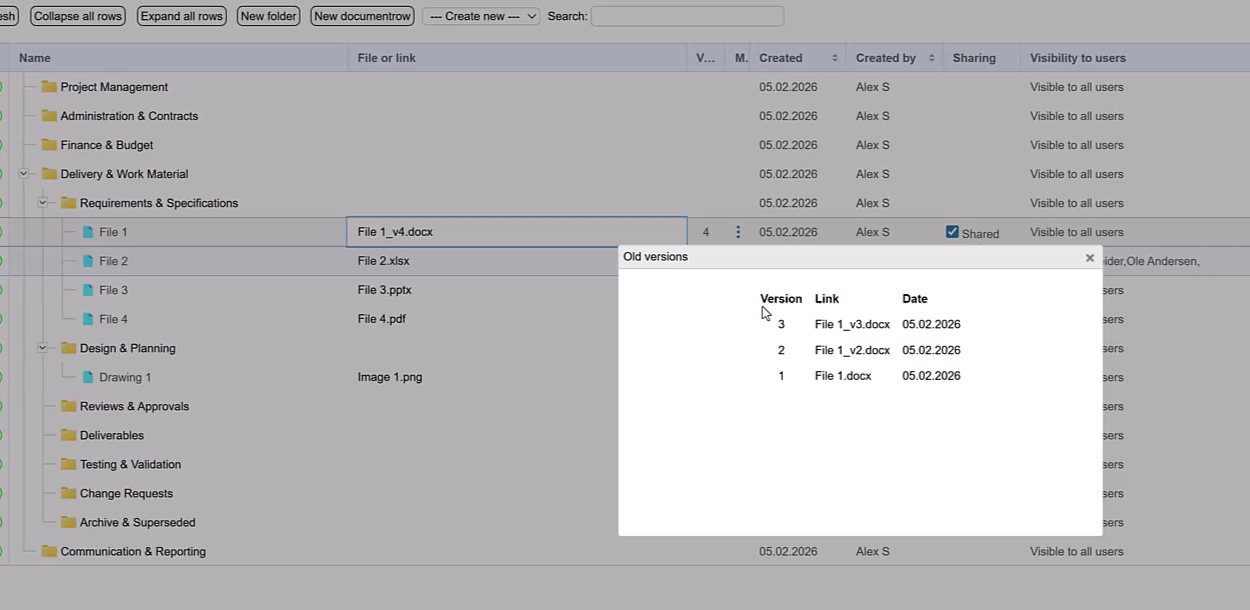
Make the latest document version available without losing earlier work. Flex retains previous versions so you can open them when you need to check what changed or refer back to an earlier file.
REUSABLE DOCUMENTATION
Start recurring work with the supporting material ready.
Include file attachments, links, and a ready-made document folder structure in your project template. When you create a project from the template, the supporting material and folder structure are copied to the new project, ready for your team to use and adapt.
Explore Project Templates →SHARED PROJECT KNOWLEDGE
Keep project knowledge with the project.
When responsibilities change, the next colleague can find supporting documents alongside the project’s tasks, schedules, and responsibilities. A clear structure and accessible version history help the team understand which information to use.
Explore Project Planning & Scheduling →ANSWERS TO COMMON QUESTIONS
Frequently asked questions
Can I attach files and links to both projects and tasks?
Yes. Add file attachments and your own links at the bottom of the project page. Each task has the same options at the bottom of its page. You can attach as many files as you need, including large files. These attachments and links also appear in Gantt and Task Table views.
Can I organize project documents into folders?
Yes. Flex gathers project documents in a dedicated document view with folders and subfolders. Add document rows where they belong, then upload a file or add a link.
Can I link to OneDrive, SharePoint, or Google Drive?
Yes. Link to folders, files, or web pages in those services or another document management system. External resources keep the access permissions of their original service.
Can I share documents with someone who does not use Starbrix?
Yes. Share documents with external recipients by e-mail. They can open and download the shared document using the link in the message, even if they are not Starbrix users.
Can confidential documents have restricted access?
Yes. You can restrict confidential documents to the users who are authorized to see them.
Does Flex keep earlier document versions?
Yes. Built-in version control keeps the current version available while retaining earlier versions that you can open when needed.
Can I see files and links while reviewing project work?
Yes. The files and links added at the bottom of project and task pages also appear in Gantt and Task Table views, so you can open them while reviewing the work.
Can project templates include files, links, and folders?
Yes. A project template can include file attachments, links, custom links, and a ready-made document folder structure. These are copied to the new project when you create it from the template.
Put project information within reach.
Give your team an organized place for project files, links, and document versions—and share the information others need.
Start Free60-day free trial. All features included.