KANBAN BOARDS
Kanban boards that make tasks, priorities, and progress visible.
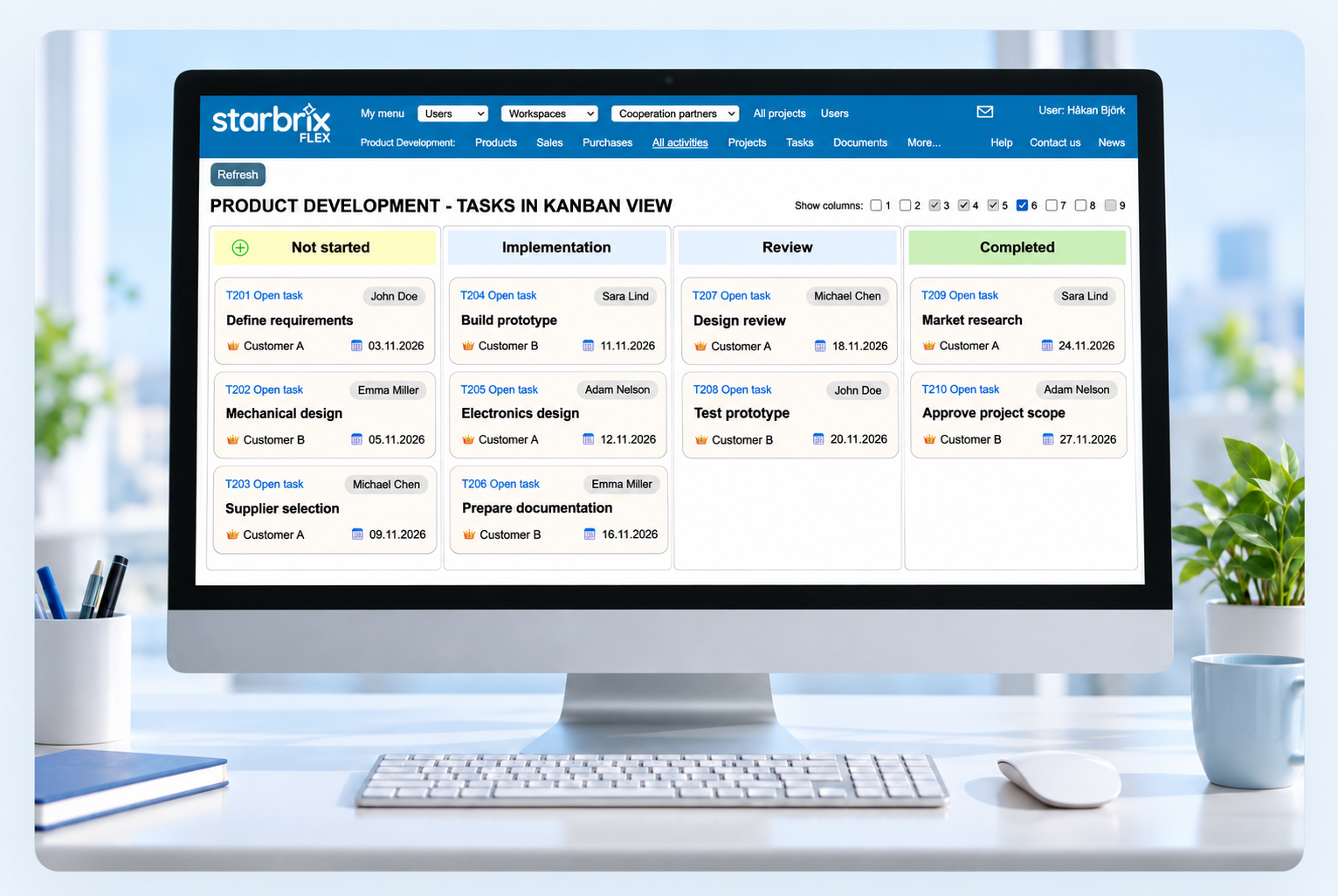
Create tasks directly on the board, drag cards between customizable status columns, and prioritize work within each column. Keep responsibilities, dates, and progress connected to your project schedules.
Start Free60-day free trial. All features included.
Customizable stages
Match your working methods.
Drag and prioritize
Update status and card order.
Connected dependencies
Respect the planned sequence.
VISUAL WORKFLOW MANAGEMENT
Shared status. Priorities for each board.
Create tasks directly in project and task Kanban boards. Move cards between columns to update status, or within a column to organize priorities.
Customize status columns to fit your process, such as Not Started, In Progress, Review, and Completed.
MOVE BETWEEN COLUMNS
Change status on any board.
Not Started
In Progress
Drag a card to another column on any Kanban board. Its status updates on every other board where that card appears.
Same card. Same updated status.
MOVE WITHIN A COLUMN
Set priorities for this board.
Before
After
Drag cards up or down within a column to change their order. This order applies only to the board you are using.
AT-A-GLANCE TASK INFORMATION
Know who, when, and what needs action.
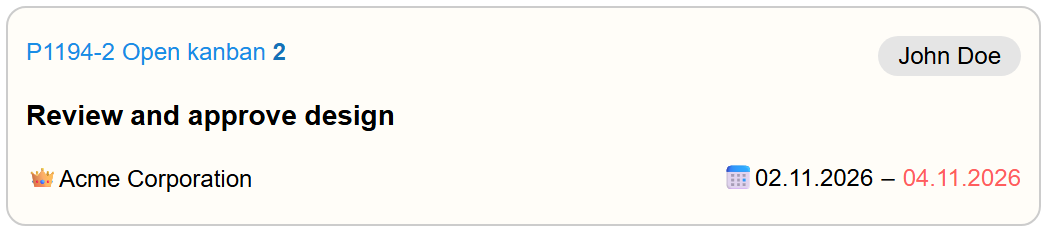
- Responsible person: see who owns the task.
- Planned dates: check start and finish dates on the card.
- Overdue highlighting: identify activities that need attention.
- Customer: see which customer the task belongs to.
- Task reference: identify the project and task number, such as P1194-2.
- Subtasks: the final number in the Open kanban link shows how many subtasks the task has. Click the link to open the task’s Kanban and view them.
UPDATE WITHOUT LEAVING THE BOARD
Open a card. Keep work moving.
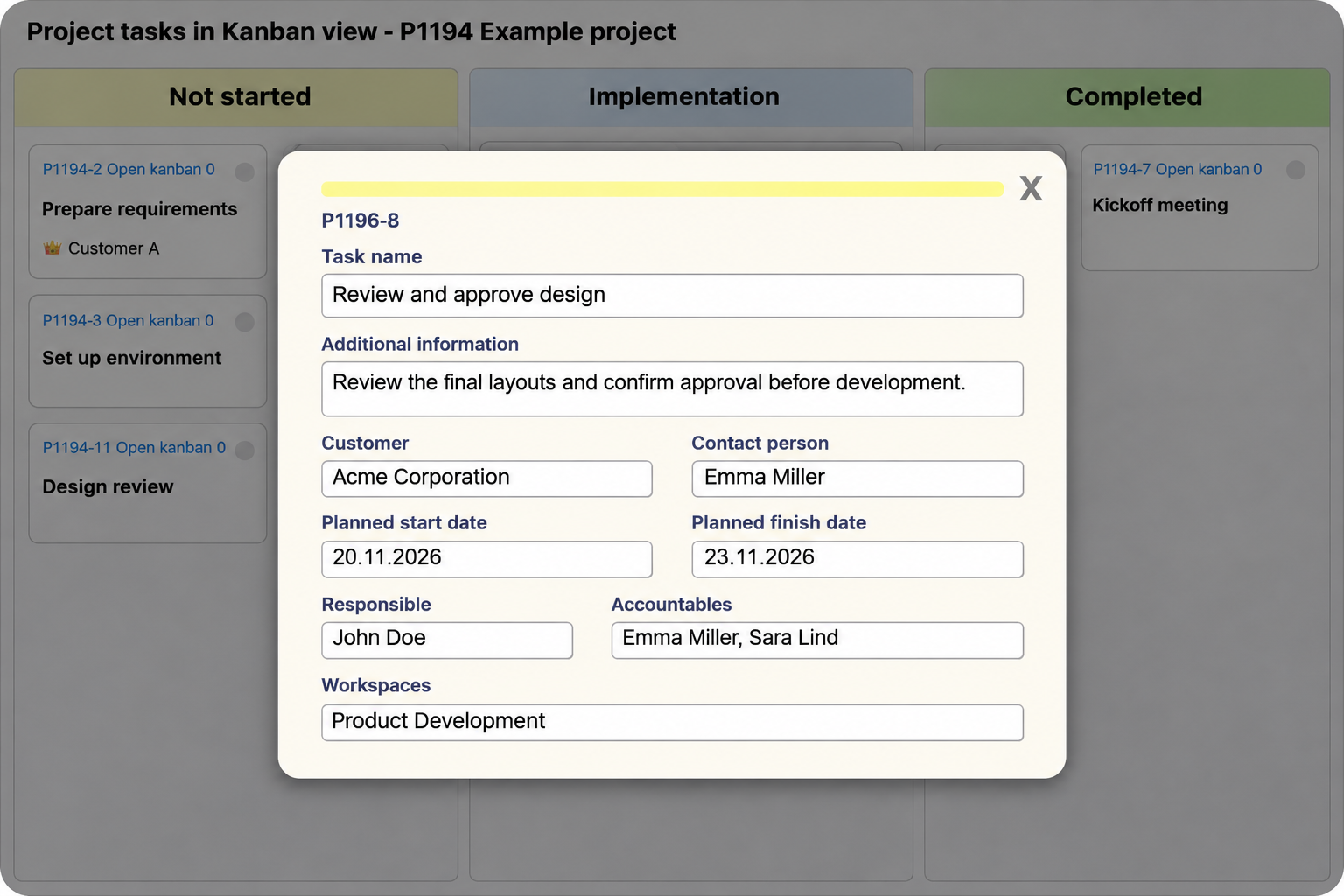
Click a Kanban card to open its details. Add information, adjust planned dates, or update responsibilities and Workspaces. Changes are saved automatically and reflected on the card immediately.
PROJECT AND TASK KANBAN
One task level at a time. Open the detail when needed.
The project board shows first-level tasks. Open a task’s Kanban to see its immediate subtasks.
Project board
NOT STARTED
IN PROGRESS
From the Design card, choose
⋯ → Open task kanban
Design’s Kanban
You are now inside Design. This board shows Design’s immediate subtasks.
NOT STARTED
IN PROGRESS
Each board shows one hierarchy level. You can continue into deeper task boards without crowding all subtasks onto the project board.
Explore Task Management →WORKSPACE AND PERSONAL KANBAN
Your team’s work. Your own assignments.
Workspace Kanban
See your team’s tasks from different projects on one board. Select a Workspace on a task to show it there.
For example, the Documentation team can see its work for several projects in one place.
Personal Kanban
See tasks where you are responsible or a participant, across all projects. Organize your daily work on one board.
You can follow your assignments without opening each project separately.
ANSWERS TO COMMON QUESTIONS
Frequently asked questions
Does Starbrix Flex include Kanban boards?
Yes. Starbrix Flex provides Kanban boards for projects, individual tasks, Workspaces, and personal work.
Can I manage subtasks in Kanban?
Yes. The project board shows first-level tasks. Use Open task kanban from a card’s menu to view its immediate subtasks, then continue deeper as needed. Each board displays one hierarchy level at a time.
Can I customize workflow stages?
Yes. Customize task status options to reflect your organization's processes and working methods.
Can I move and reorder cards?
Yes. Drag a card between columns on any Kanban board to update its status on every other board where it appears. Drag cards vertically within a column to change their order on that board only; other boards retain their own order. The card menu also lets you move cards between columns.
What information appears on cards?
Cards can show the customer’s name, the responsible person, and planned start and finish dates. Overdue activities are highlighted in red.
What is the difference between Project, Workspace, and Personal Kanban?
Project Kanban shows first-level project tasks, with separate boards for deeper task levels. Workspace Kanban brings together tasks assigned to that Workspace. Personal Kanban shows tasks where you are responsible or a participant.
Are Kanban boards connected to Gantt charts?
Yes. Project tasks share information across Kanban, Gantt, and task management views. Scheduling dependency rules also apply when managing tasks in Kanban.
Can I choose a task’s Kanban column from Gantt?
Yes. Display the Kanban column field in Gantt, then choose exactly which column the task should appear in on the project’s Kanban board.
Give everyone a clearer view of the work.
Customize your workflow, organize priorities, and keep everyday updates connected to structured project plans.
Start Free60-day free trial. All features included.