Every new project starts the same way: someone opens a blank plan, tries to remember what happened last time, and copies tasks from an old spreadsheet. Steps get missed. One team plans in phases, another in a flat list, and the person trying to compare progress across both ends up reconciling them by hand.
Custom project templates fix most of this. If you're looking for an affordable project management system with portfolio oversight and custom templates for different teams, this guide shows you how to build a template in Starbrix Core, apply it to new projects, reuse it across teams, and keep it under control as it spreads.
Who it's for: Project managers, operations managers, team leads, and PMO stakeholders who run recurring types of work.
Difficulty: Beginner to intermediate.
Time: About 30 to 45 minutes for your first template, less for subsequent ones.
End result: One reusable template, a new project created from it, and a simple governance routine for permissions and updates.
Why One Template per Work Type Beats Starting from Scratch
Many organizations carry out projects with a similar structure again and again. A campaign launch looks much like the last campaign launch. A software release follows roughly the same phases every quarter. A site build moves through familiar stages.
Starbrix Core lets you define that structure once as a project template, then select it whenever you create a new project. You get faster setup and a more consistent plan, and you don't rely on one person's memory of how it was done last time.
Consistency matters even more once you manage a portfolio. When every campaign, delivery, or build uses the same phases, comparing progress across teams stops being guesswork. A standardized structure is what makes portfolio oversight meaningful.
What a Template Contains in Starbrix Core
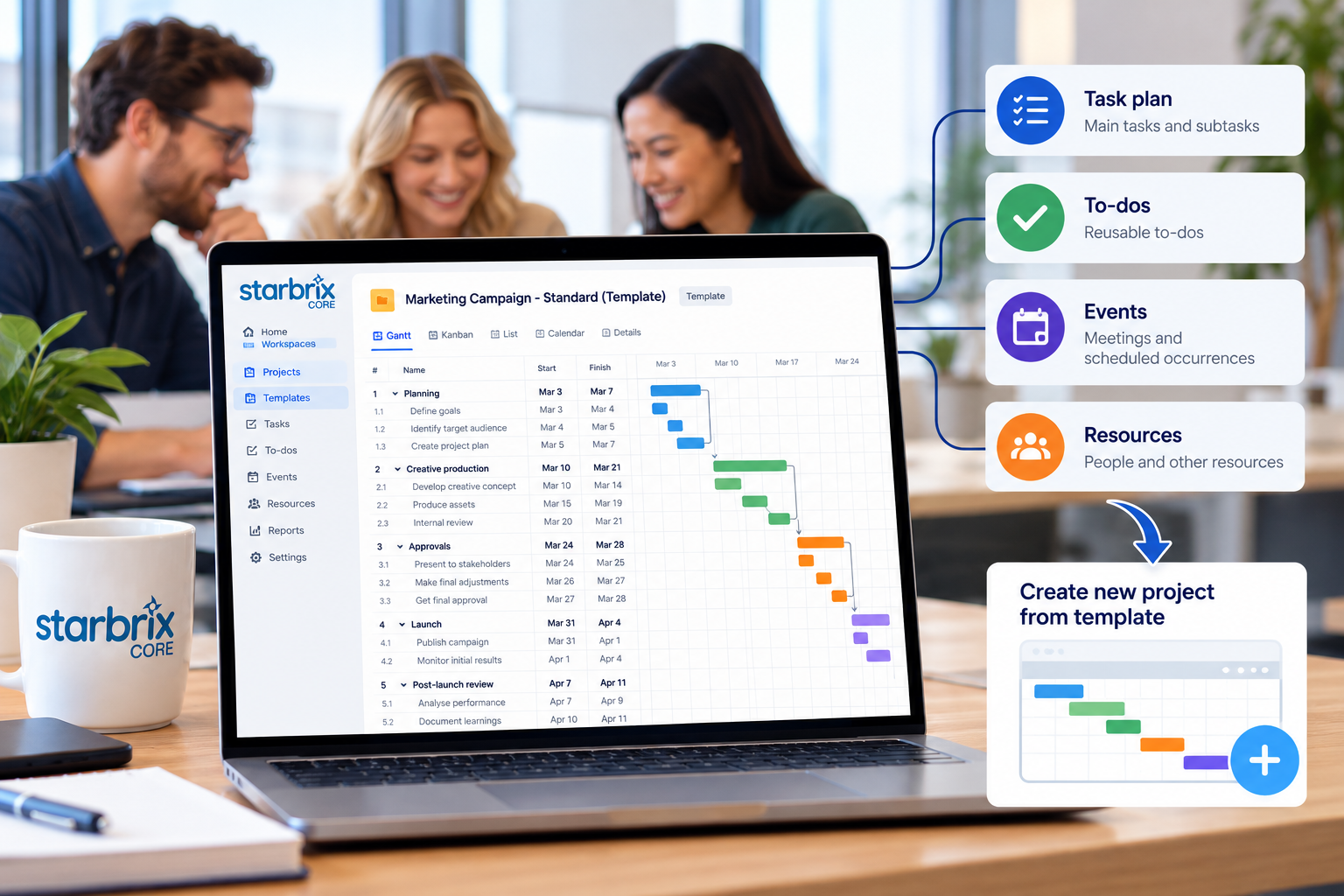
A Starbrix Core project template can include four building blocks:
- A task plan with main tasks and subtasks
- Reusable to-dos
- Events, such as meetings or other scheduled occurrences
- Resources, meaning the people or other resources normally involved
A template is a starting point, not a rigid plan. After you create a project from it, you can change tasks, add activities, remove what you don't need, and adapt the schedule. That flexibility is what lets several teams share a single approach without forcing everyone into identical projects.
What to Prepare Before You Build
You don't need much. Gather these before you start:
- A Starbrix account. Starbrix Core has a free plan for up to three members, so you can test the entire process before involving other teams.
- One recurring type of work to model first, such as your standard campaign, release, or build.
- A recent, successful project of that type to use as a reference. Skim its task list and note the phases, meetings, and roles that appeared every time.
- A short list of who should be allowed to create or edit templates (you'll use it in the governance section).
Pick one work type. Trying to build a universal template for every team on day one is the most common reason template projects stall.
How to Create a Custom Project Template
Step 1: Create the Template and Name It Clearly
To create a new project template in Starbrix Core, first click the Add project button, then click the Create project template link.
Give your template a clear, descriptive name that helps other team members understand its purpose and when to use it. For example, "Marketing Campaign - Standard" is better than "Template 1." If you expect to update the template over time, consider including a version number or date in its name (more on that below).
Step 2: Build the Task Plan with Main Tasks and Subtasks
Create your main tasks as the phases of the work, then add subtasks beneath each one. Aim for the level of detail that every project of this type genuinely needs, and no more.
A useful test: If a task only applies to one project in four, leave it out of the template. Someone can add it to that project afterward.
Because the task plan is the baseline action plan for every future project, the same structure can be viewed in the Gantt chart for scheduling and on Kanban boards for day-to-day work. Subtasks that are clear and action-sized make the plan Kanban-ready from the start.
Step 3: Add Reusable To-Dos
Some actions are too small or too informal for the formal task plan. Think of reminders such as "send final assets to the approver" or "confirm the contact list." Add these as to-dos so they appear in every new project without cluttering your phases.
Step 4: Add Reusable Events
Add the scheduled occurrences that always happen: a kickoff meeting, a design review, an approval checkpoint, or a go-live window. When someone creates a project from the template, those events are already there as part of the plan.
Step 5: Add Resources
Include the people or other resources normally involved in this type of work. This is the resource-based part of the template setup. It saves you from reentering the same roles each time, and it makes a template more useful because it shows who typically takes part.
Step 6: Plan Task Durations Using Start and Finish Dates
If the duration of tasks is generally similar across projects of the same type, it's a good idea to define planned start and finish dates directly in the template.
Start by choosing any convenient reference date, such as next Monday. Then schedule the tasks and subtasks from that date, setting their planned start and finish dates according to how long they typically take. This allows you to establish realistic task durations, sequences, and dependencies.
When a new project is created from the template, the task durations and dependencies are preserved, but the dates are automatically adjusted to match the new project's actual planned start or finish date.
For example, if a task is planned to take 10 working days in the template, it will also take 10 working days in the new project, regardless of when that project starts.
This means you can create a realistic project schedule once and reuse it for future projects without having to manually reschedule every task.
Checkpoint: Open the finished template and review the entire schedule. Are the task durations realistic? Are the tasks arranged in the correct sequence, with appropriate dependencies? Could a team lead who has never managed this type of project understand the workflow and expected timeline? If not, refine the schedule before saving the template.
How to Apply a Template to a New Project
- Create a new project in Starbrix Core.
- Select your template instead of starting with an empty project.
- Review what was included. You should see the task plan with its main tasks and subtasks, plus the to-dos, events, and resources you added.
- Set the actual timeline. The task dates will be adjusted to match the new project's planned start or finish date while preserving their durations and dependencies.
- Edit the details. Rename tasks where needed, add activities this project requires, and delete anything that doesn't apply.
Checkpoint: The new project should already contain your baseline phases, and you should be able to change tasks and dates without difficulty. If it feels like you're fighting the template, it's probably too detailed. Simplify it and try again.
Warning: Don't skip Step 5. A template applied without review produces projects that look identical but don't reflect reality, and your reporting will be tidy but inaccurate.
How to Reuse Templates Across Teams and Maintain Portfolio Oversight
Reuse works best when you treat the template as a shared language, not a shared document. Here's a practical approach.
Share a Common Core, Then Let Teams Diverge
Agree on a handful of phases and checkpoints that every team recognizes, such as planning, delivery, review, and closeout. Build each team's template around those. Marketing, engineering, and construction can then use different tasks within the phases while still reporting progress in a comparable way.
Keep Each Team's Projects in the Right Portfolio Area
In Starbrix Core, portfolio areas are called Workspaces. Create projects from templates inside the Workspace that matches the team or area of work. This keeps the company-wide view organized, so you can see all projects across the organization and still drill down into one area. If you later move to Starbrix Flex, the equivalent portfolio areas are called Operational Areas.
How to Manage Template Versions and Permissions
Once several teams copy from the same template, governance becomes essential. Without it, you get template drift: every team quietly edits its own copy, and the standard disappears.
Decide Who Can Create, Edit, and Only Use Templates
Establish the intended access levels first. A sensible division is:
- A small group (often a PMO or operations manager plus team leads) creates and edits templates.
- Everyone else uses templates to create projects.
Then check your Starbrix account's access settings and match them to that division. Use the role and permission names exactly as they appear in your account, and test with a regular user login to confirm what they can and can't change.
Version by Publishing, Not by Editing in Place
When a template is already in use, avoid editing it silently. A simple routine:
- Duplicate or rebuild the template with an updated name, such as "Engineering Delivery - v2."
- Make your improvements in the new version.
- Tell the teams which version to use for new projects.
- Keep the old version for reference, or rename it so it's clearly retired.
Templates feed new projects. Projects themselves are meant to be adapted after creation, so improving a template shouldn't mean rebuilding active projects. Confirm this with a test project the first time you change a template, so you know exactly how your account behaves.
Warnings Worth Keeping in Mind
- Don't edit a template other teams still rely on without telling them.
- Don't use vague names. If two templates look alike, people will select the wrong one.
- Don't give edit rights to everyone. Too many editors mean too many versions.
- Don't review templates only when something breaks. Schedule a review, for example, once a quarter.
Checkpoint: You should now be able to identify who is responsible for each template, how changes are communicated, and how older projects remain consistent while newer projects benefit from the improved structure.
Three Template Examples You Can Adapt
These examples use only the building blocks Starbrix Core templates support: task plans, to-dos, events, and resources.
Marketing Campaign Template
Task plan: Planning, creative production, approvals, launch, and post-launch review, each with its own subtasks.
To-dos: Package final assets, remind reviewers to check messaging.
Events: Campaign kickoff meeting, approval milestone.
Resources: The roles you normally need, such as campaign lead, designer, and copywriter.
What it standardizes: The order of work and the approval checkpoint. What teams adapt: Dates, channel-specific tasks, and additional stakeholders. Fast start: You skip rebuilding the same phase list for every campaign and spend that time on the brief.
Engineering Delivery Template
Task plan: Requirements, design, implementation, testing, and release. Task order implies the dependencies between phases.
To-dos: Small follow-ups such as updating documentation or confirming test environments.
Events: Design review, test sign-off, and release meeting.
Resources: Project manager, technical lead, developers, and testers.
What it standardizes: Delivery stages and review points. What teams adapt: Scope-specific tasks, timelines, and team composition. Fast start: Every release begins with the same quality checkpoints already in place.
Construction Project Template
Task plan: Site setup, procurement readiness, installation, inspections, and closeout.
Events: Inspections and progress meetings.
Resources: The roles typical for your project, such as site manager and subcontractor contacts.
What it standardizes: The construction sequence and the inspection points that can't be forgotten. What teams adapt: Site-specific tasks, dates, and who's involved. Fast start: New sites start with a proven sequence rather than a blank page.
Troubleshooting Common Problems
Teams ignore the template and start from scratch. Usually, the name is unclear or the template is too complex. Rename it to describe the work, and remove tasks that don't apply to most projects.
Projects look the same, but progress reports don't align. The phases probably differ between team templates. Agree on shared phase names and checkpoints and rebuild from that common structure.
Someone changed a template, and nobody knew. Limit the group of editors and use the versioned naming routine described above.
New projects require extensive cleanup. The template may contain too many project-specific details or unrealistic task durations. Simplify the structure and adjust the planned durations so they work for most projects of that type.
Roles don't match reality. Review the resources you added and update them in a new template version.
What You've Set Up and Where to Go Next
You've created a template with a task plan, to-dos, events, and resources, defined realistic task durations and dependencies, applied it to a new project, and established simple rules for who edits templates and how versions change. That gives you a repeatable standard that several teams can share while still reporting into one portfolio.
For next steps:
- Build two or three more templates for your most common recurring work types.
- Assign someone to manage template governance, such as a PMO or operations lead, and designate a template contact in each team.
- Conduct your first template review after a month of actual use and publish a v2 where improvements are needed.
- Check your Workspaces to ensure new projects are being created from the appropriate templates.
If you haven't tried it yet, Starbrix Core's free plan for up to three members is enough to build your first template and see how it works with a real project.